Legacy Account Migration
Firstly thank you very much for being existing user of Image Edits, we are very grateful for your support. You all have been able to provide us the run way to create something that we are very proud of. Thank you for dealing with us, especially with Haydn early on when we didnt have a website and was all handled via email, very messy times that way hahah.
Before continuing, this section only applies to accounts created on the old website, the old website the login looked like this:
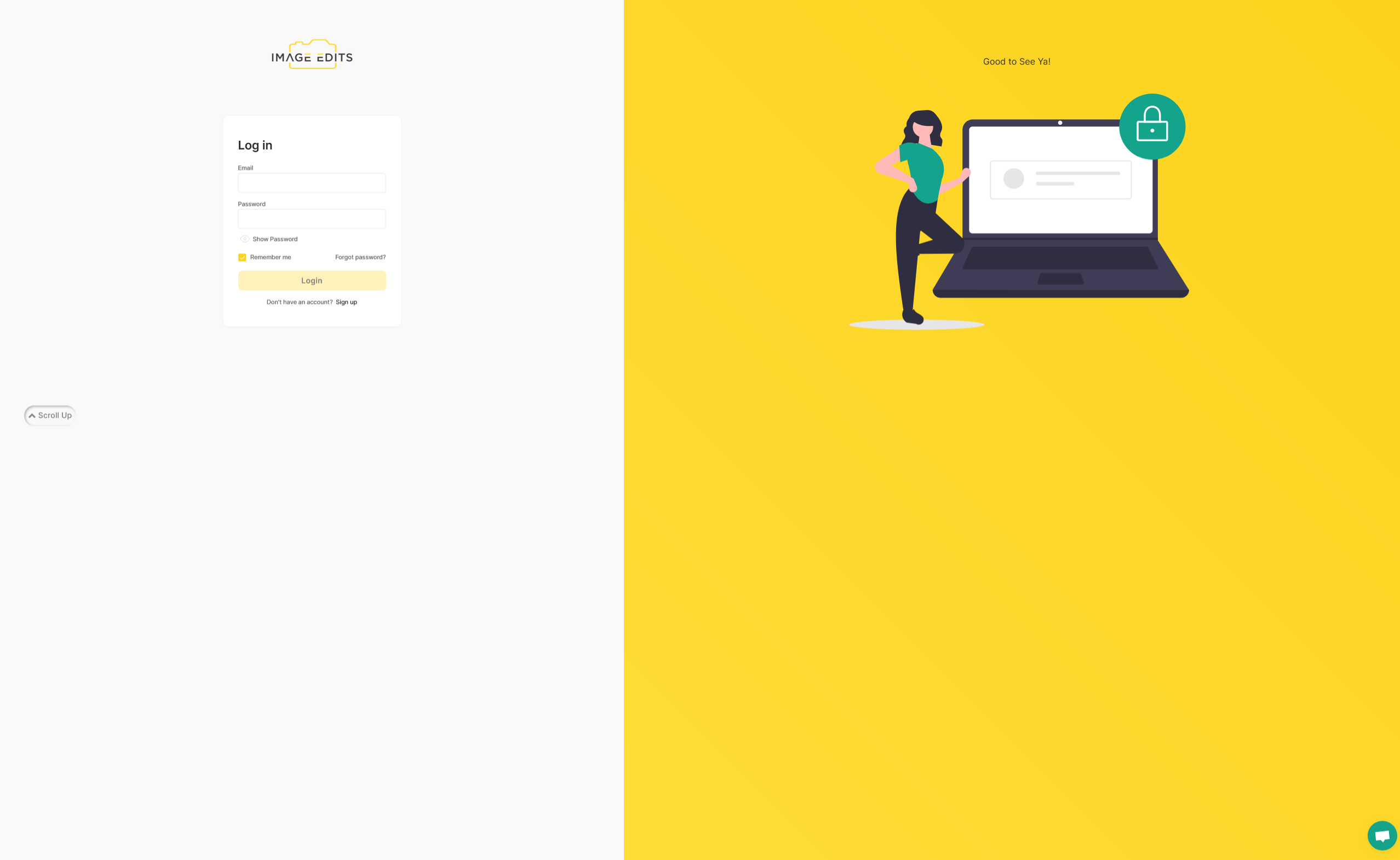
Migrate Existing Account To New System
To migrate your account to the new system, you will need to follow these steps:
Step 1: Attempt Login
Attempt to login with your existing account from old website. When you attempt to login, you should get the error shown in bottom right of image below:
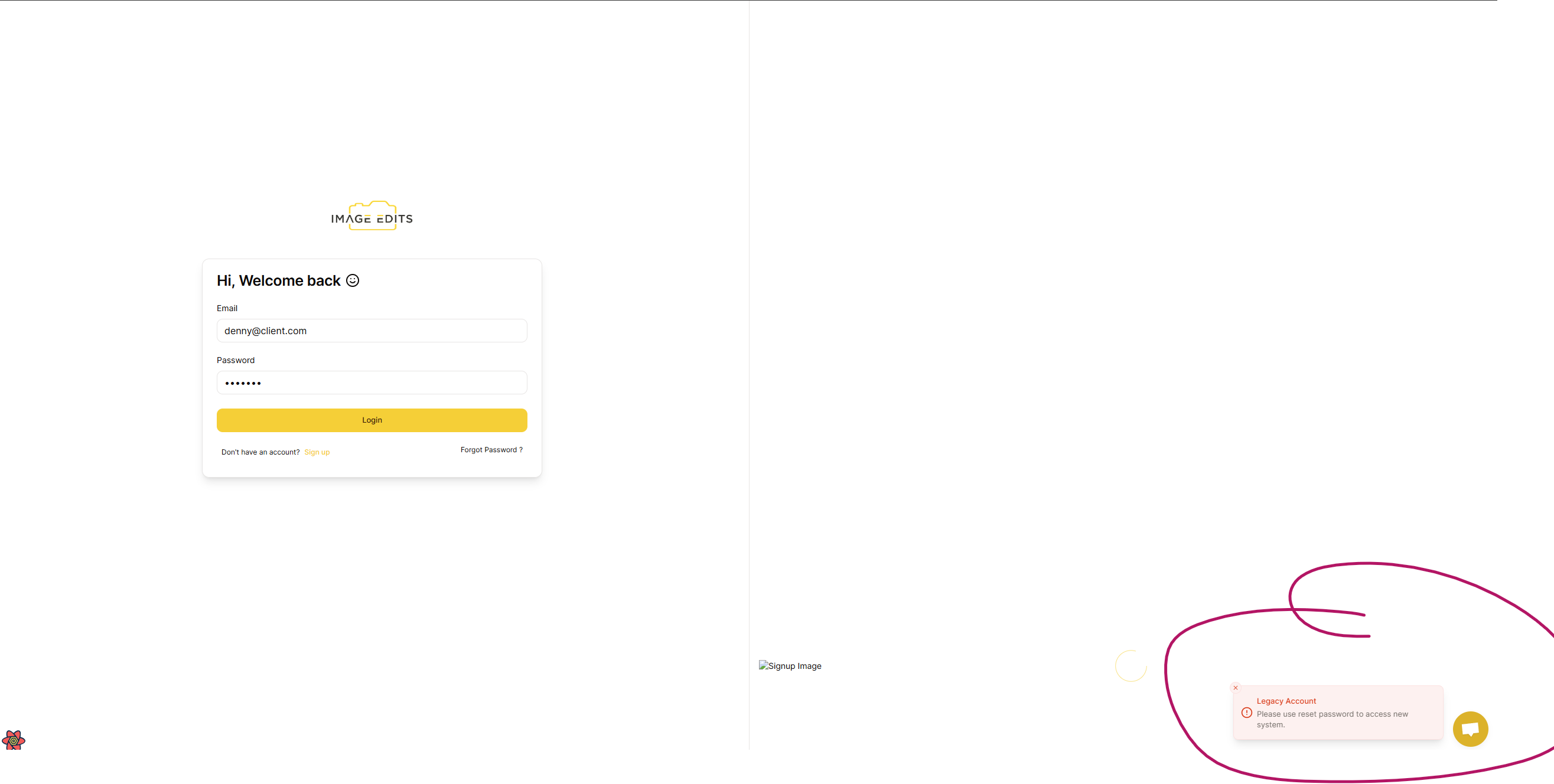
The error will state, Legacy Account, this means you have an account that was created on the old website.
If you do not see this error, then you are not on the old system and can just sign up as normal.
Step 2: Request Password Reset
Next step, we need to just reset password. Please press Forgot Password, it is just below here email and password inputs are.
After that is pressed it will take you to the reset password page.
See image below:
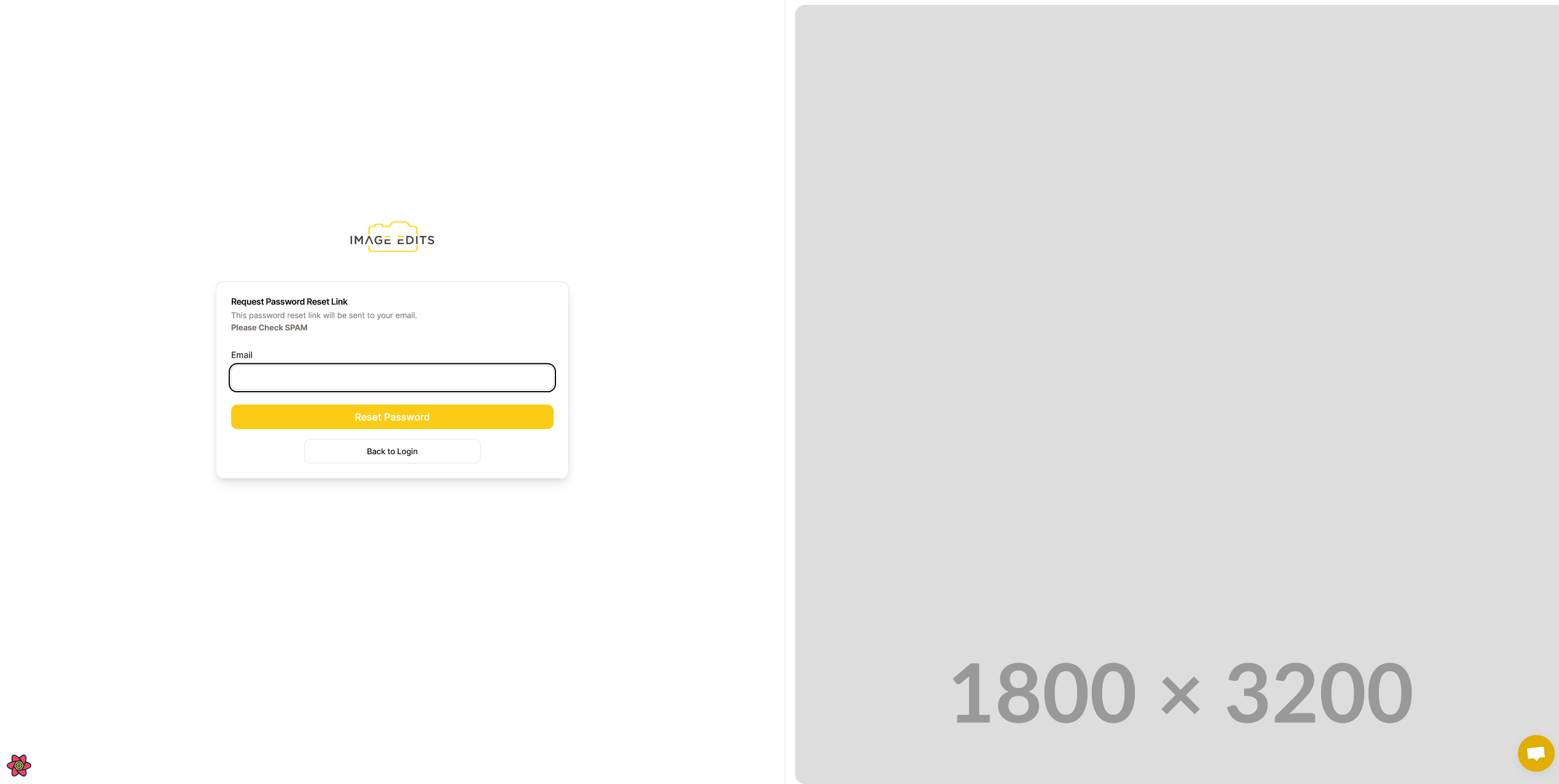
This is where you can enter your email and press Reset Password, this will send an email to your account to reset password.
Step 3: Find Reset Email
Access your email to find an email from Image Edits to reset your password.
The email will look like this:
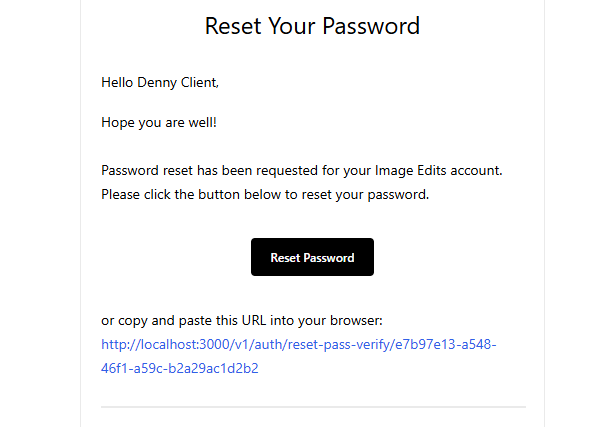
Either press the Reset Password button or copy the link and paste it into your browser.
This will take you to password reset page.
Step 4: Reset Password
This will be password reset page, you can enter your new password here.
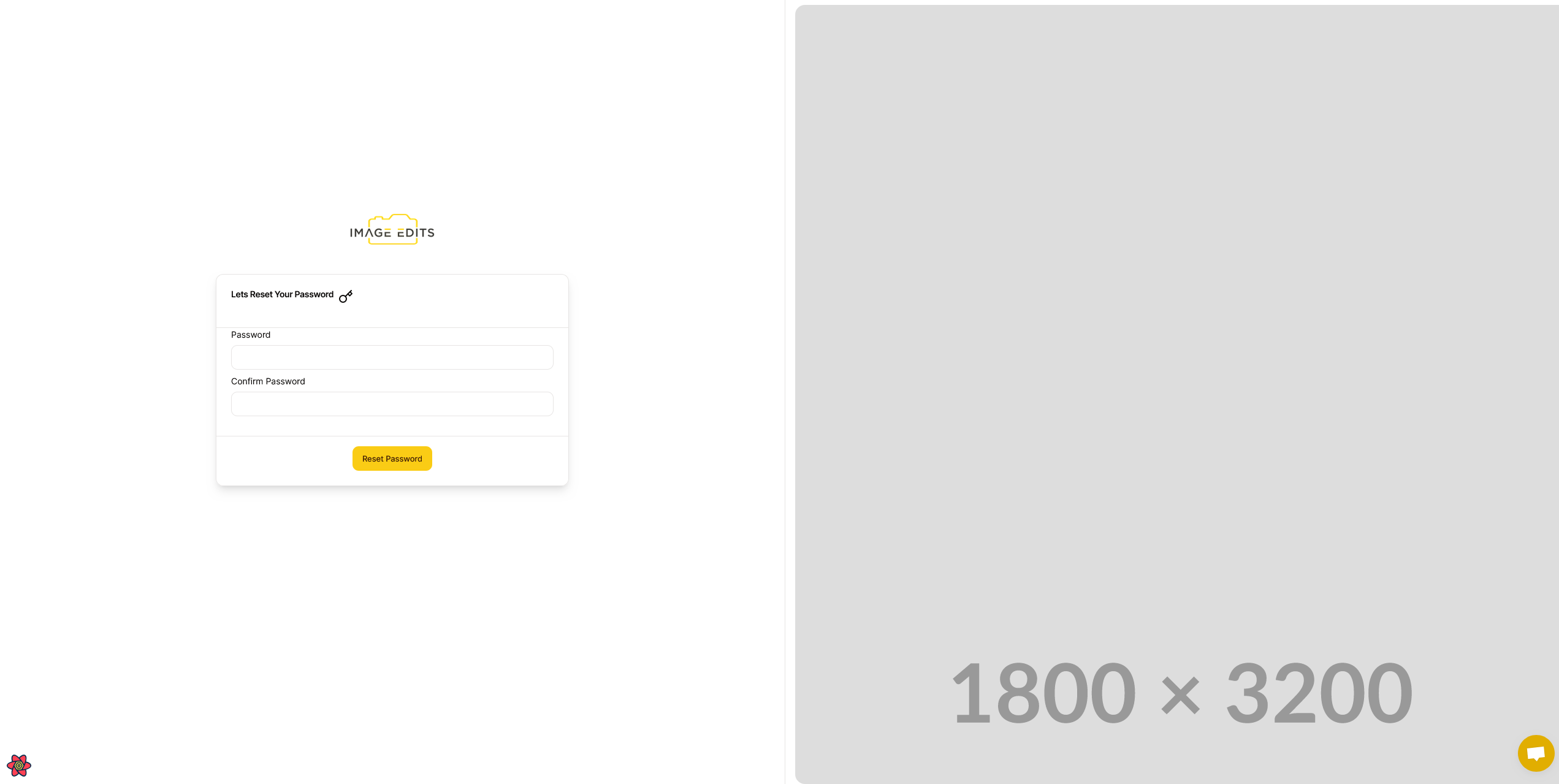
Once you confirm the new password. It will redirect you to the login page. Where you can input your email and your new password.
If you run into any errors with this step, please contact Image Edits support.