Project & Order Create Flow
Create Project and Order Flow
This section is going to show you how to create a project and then add/create an order linking that new order to the recently created project.
Step 1: Navigate to Project Section & Start Project Creation
To begin, you will need to go to the Project Section
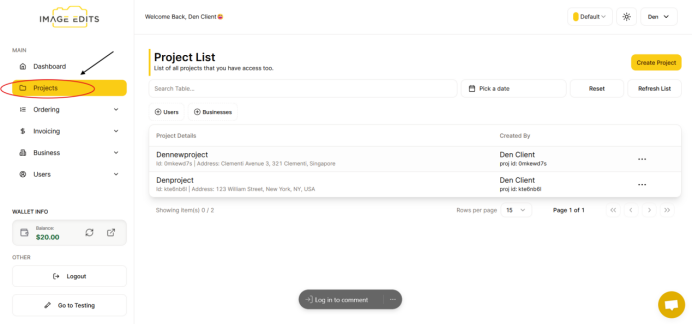
From the image above, you'll notice that you'll be redirected to the project list, where the "create project" button is located on the right side.
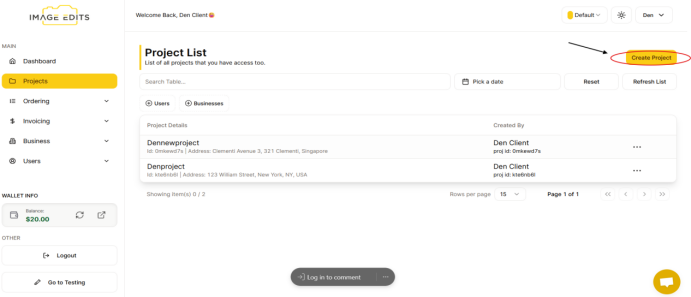
Step 2: Fill Out Project Creation Form
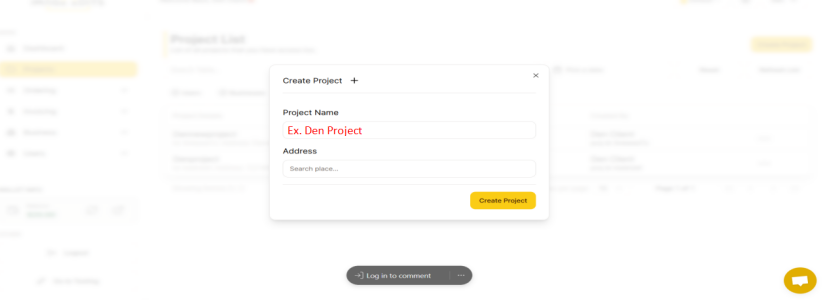
To create project, input your project name and address first then click the “create project” button.
You can input any random project name, for example, 'den project,' and then search for your address.
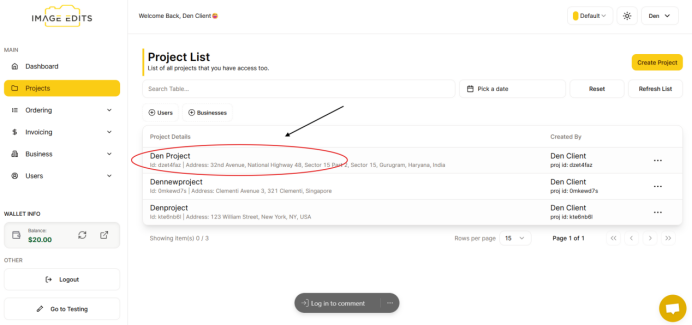
Step 3: Navigate to New Project Detail Page
After creating a project, the project list below will be updated with your newly created project. Click on this project to nagivate to the project detail page.
Step 4: Start Order Creation From Project
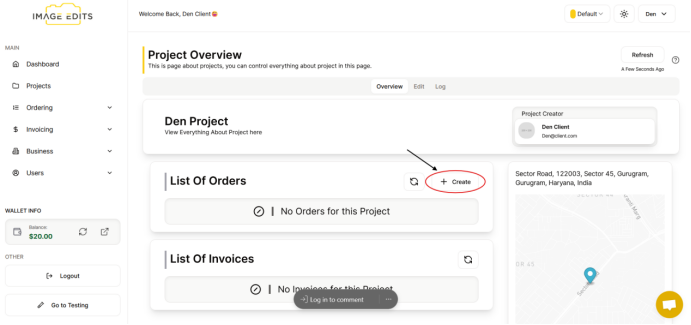
Once youve nagivated to the project detail page, you can start order creation from the project page, buy clicking the "+ Create" button in the section called "List of Orders".
Youll be redirect to the service selection page, where youll select the service you want to create an order for.
Step 5: Finish With Order Creation
The rest of this is exactly the same as the order creation flow, you can follow the same steps to create an order. View the guide here: Order Create Guide
The only difference will be that the project input will be pre-selected for you.