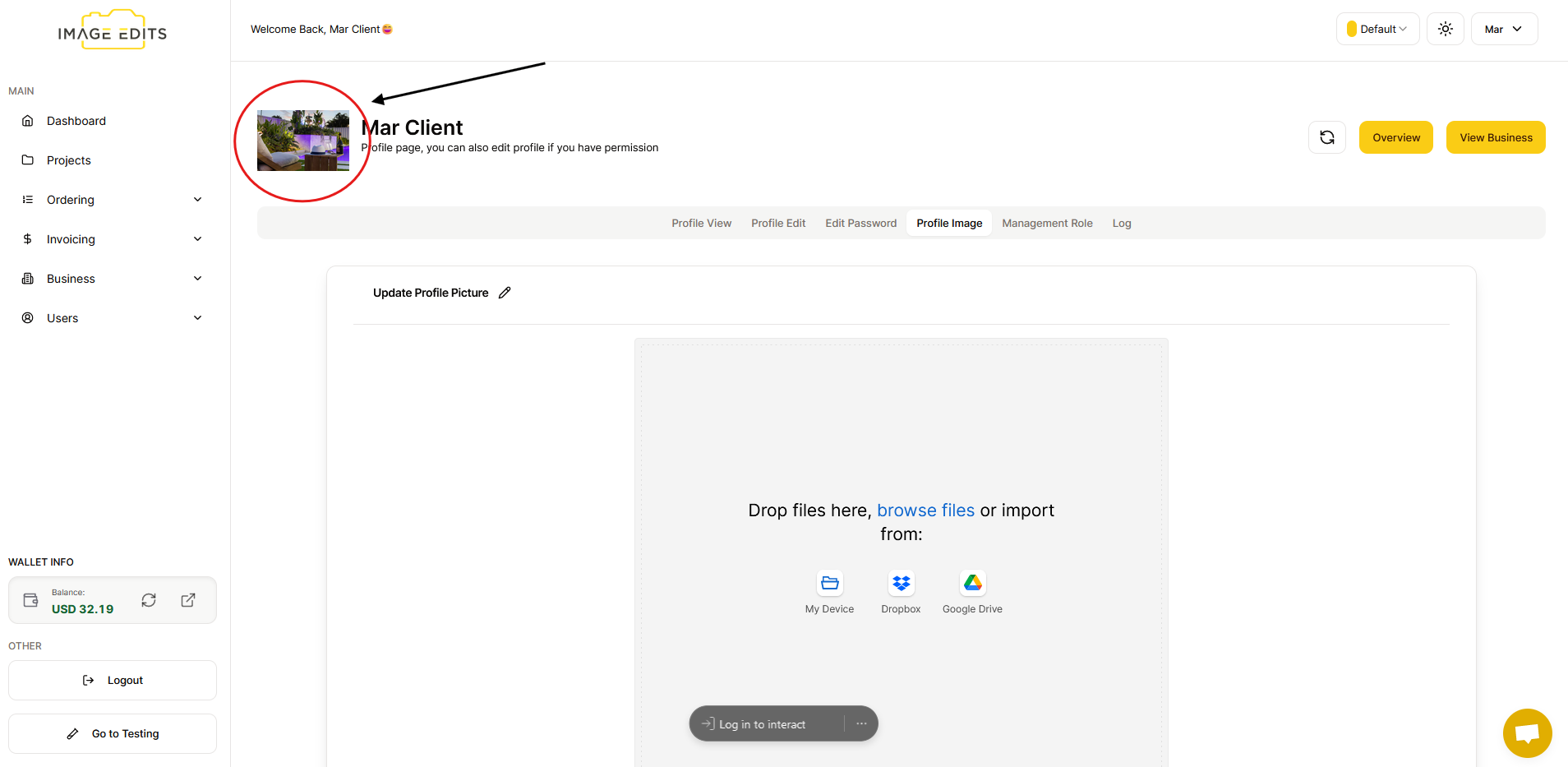
Edit Profile Image
Update Profile Image
This section will guide you through the process of updating your profile image.
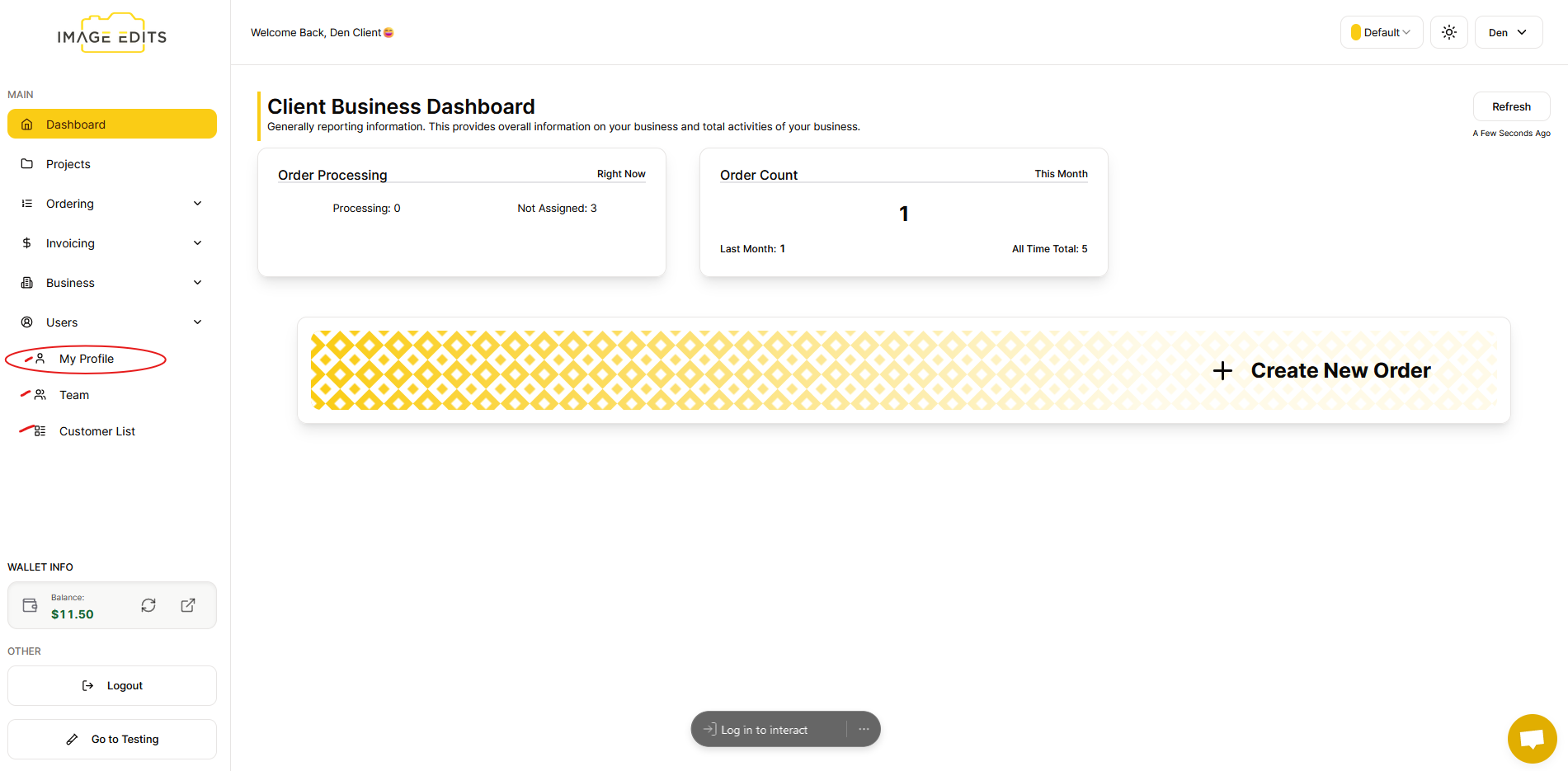
Step 1: Navigate to My Profile
After clicking the users - My Profile, Team and Customers List will appear. Select My Profile menu item. (Or if business owner, you can go to the Team to select the team user you would like to edit profile of.)
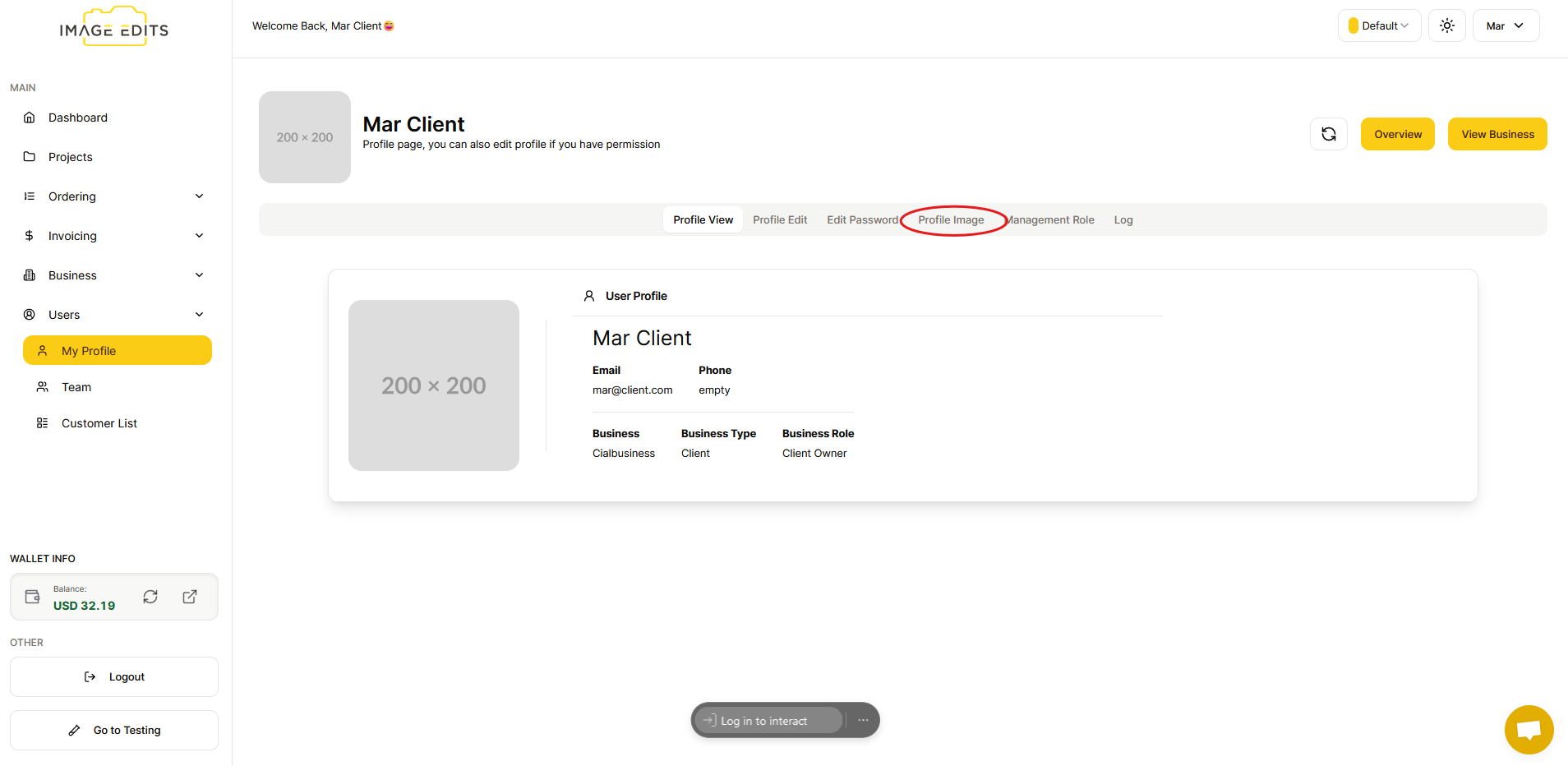
Step 2: Click "Profile Image"
After that, you will go straight to the "profile view" and click "profile image"
Step 3: Selecting Image
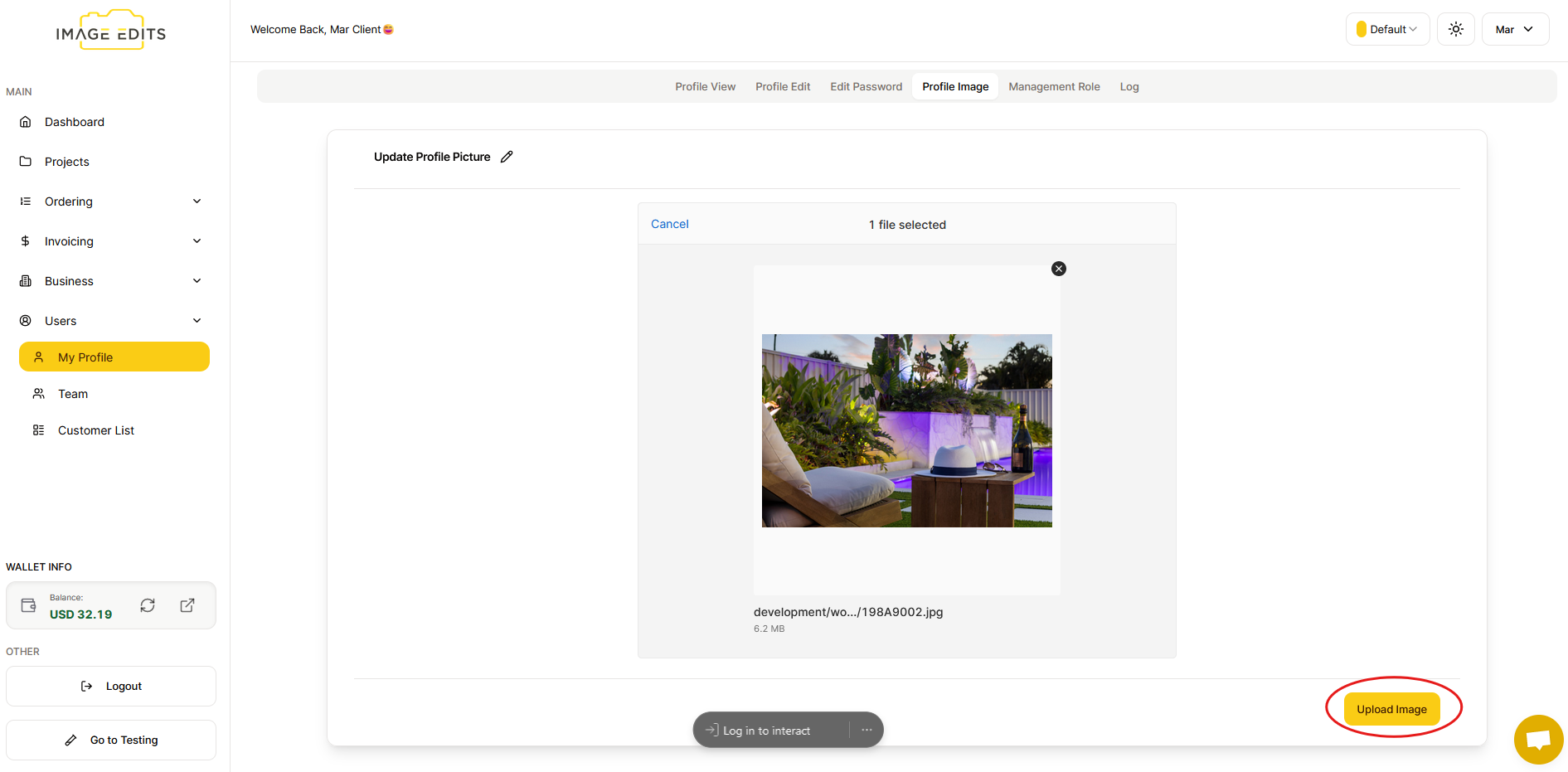
You have the option to upload an image using "My Device," "Dropbox," or "Google Drive," or alternatively, you can drag and drop an image saved in your files.
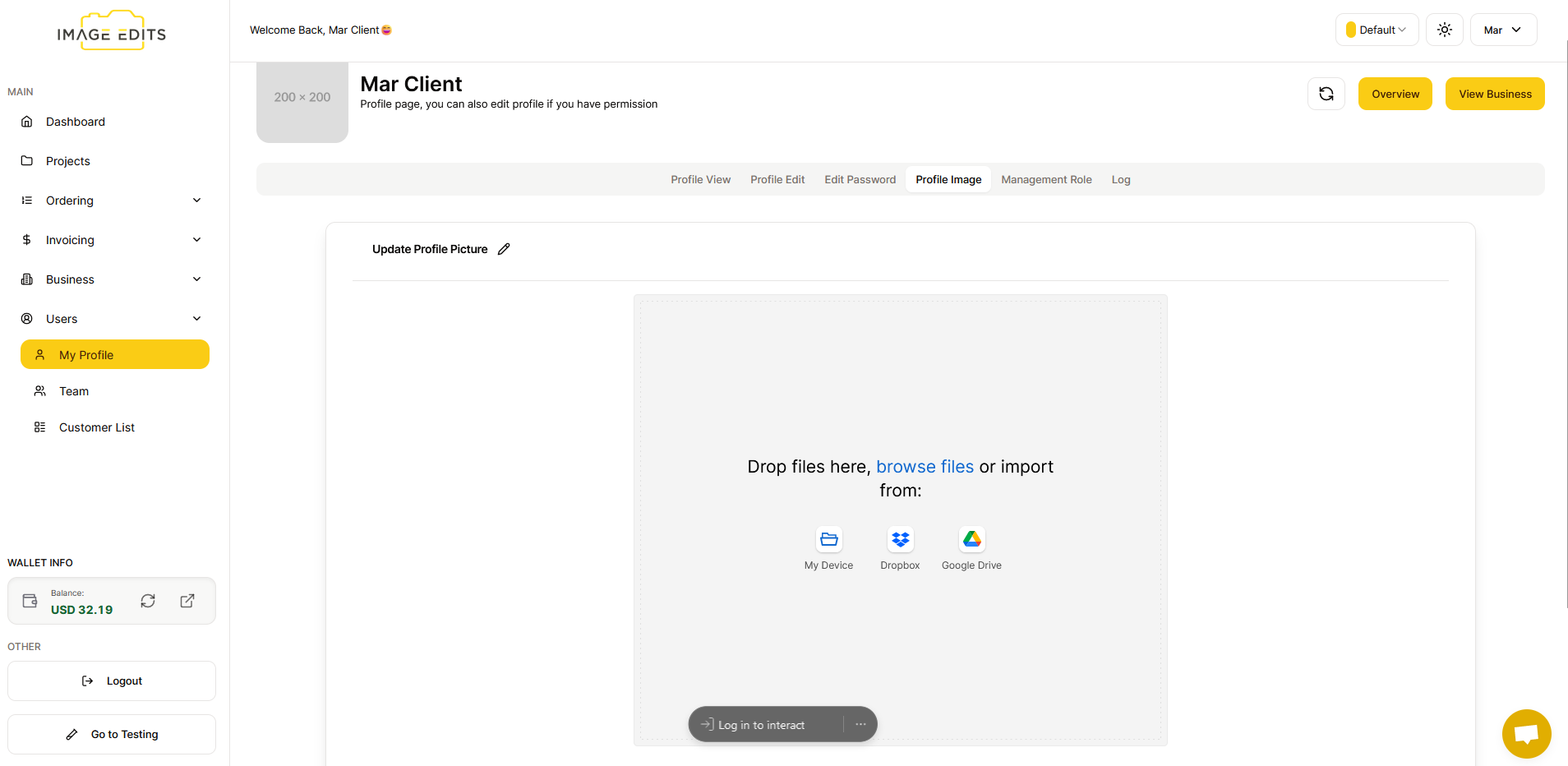
After you select image, click the "update image" button.
Once the upload is complete, you will see your profile updated immediately.