Reset Password
This section will guide you through the process of resetting your password, ensure you can access to your account securely.
There are two difference ways to reset password, one is to reset password on your account directly while logged in, and other one is to send a password reset link to your email address.
- If you DONT know your password, you need to request a password reset link to your email address.
- If you DO know your password, you can reset your password directly on your account.
Reset Via Account Directly
Step 1: Navigate to User Section
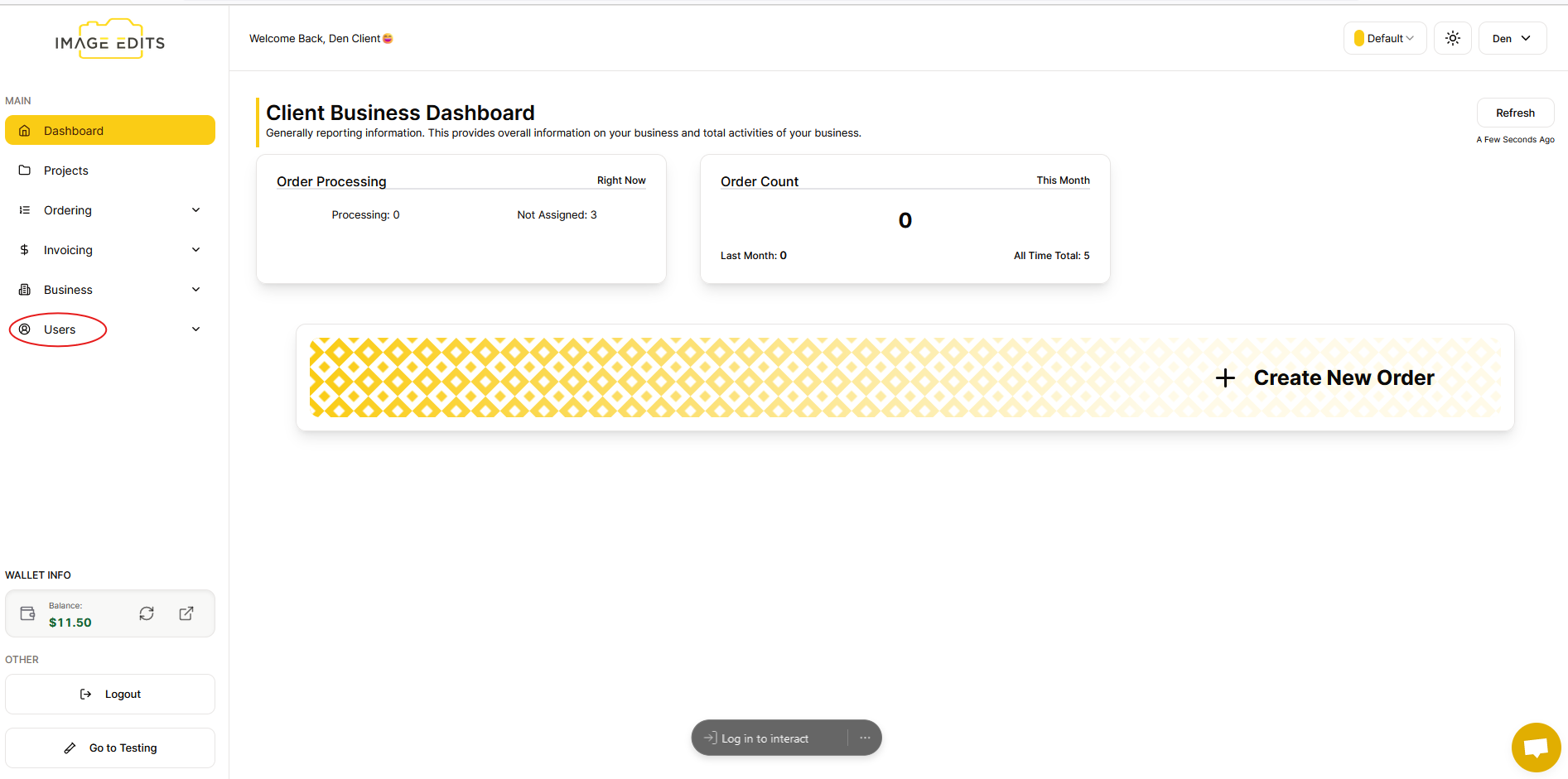
To begin, go to user section
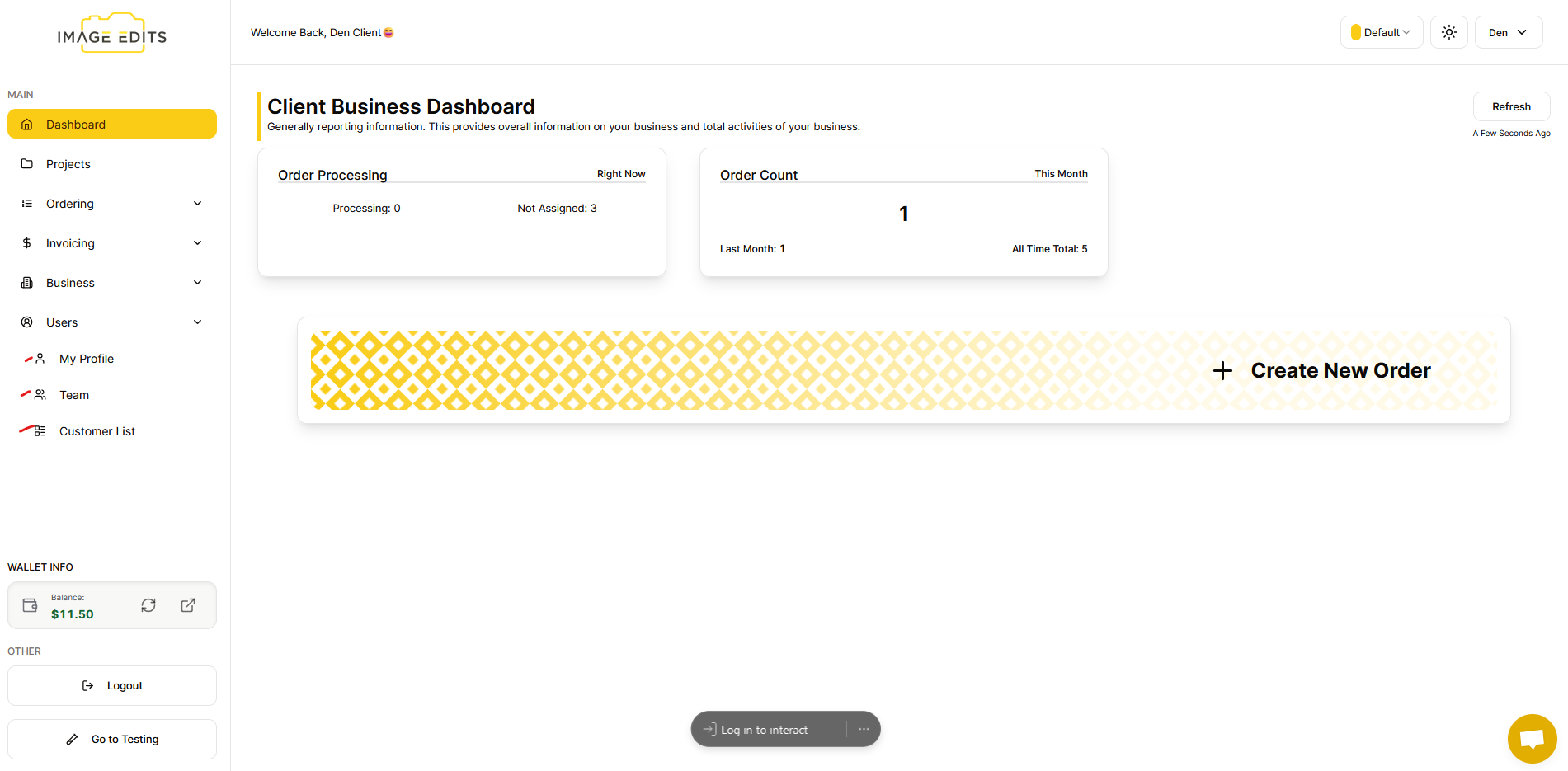
After clicking the users - My Profile, Team and Customers List will appear.
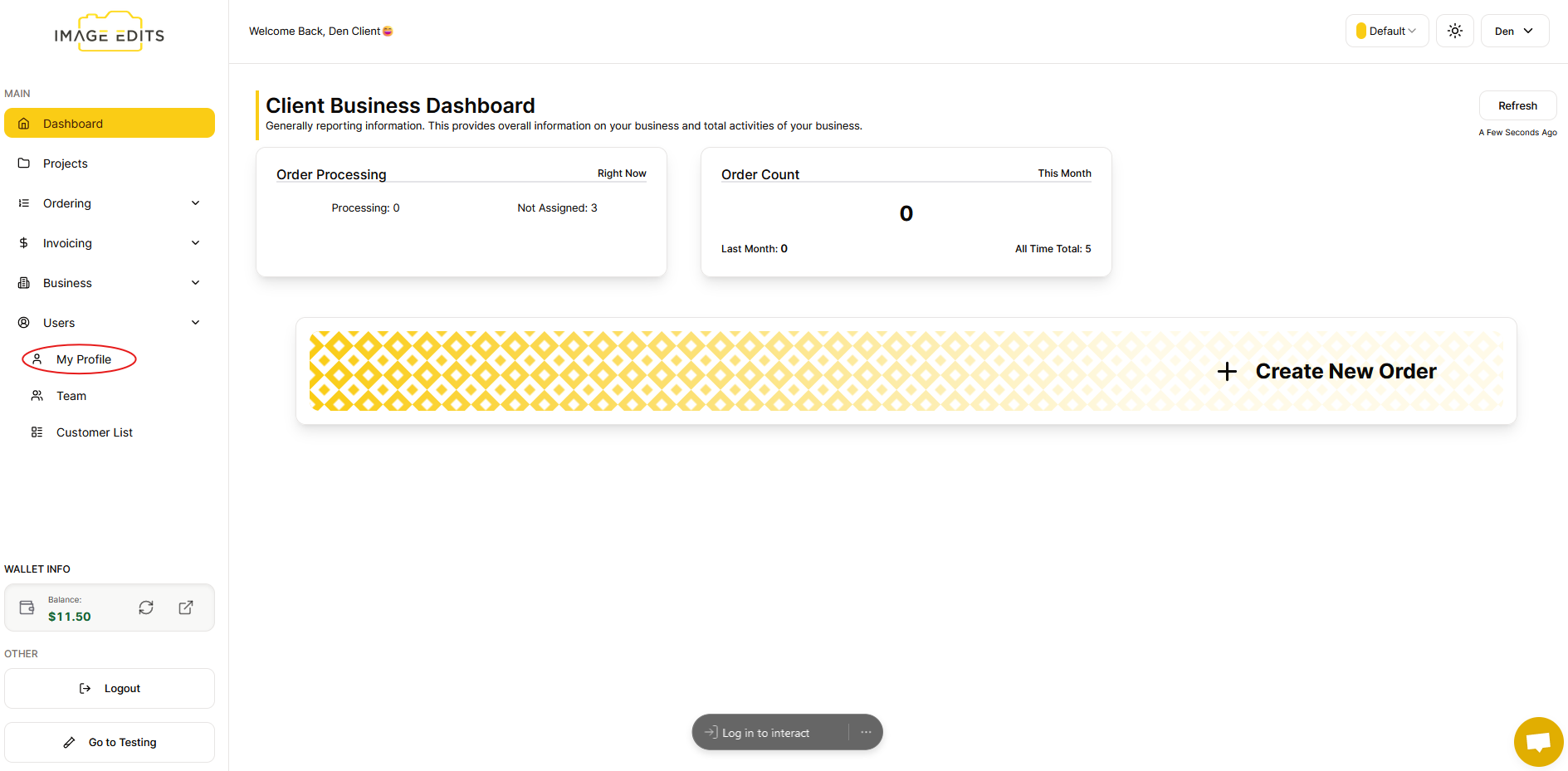
Go to “My Profile” section.
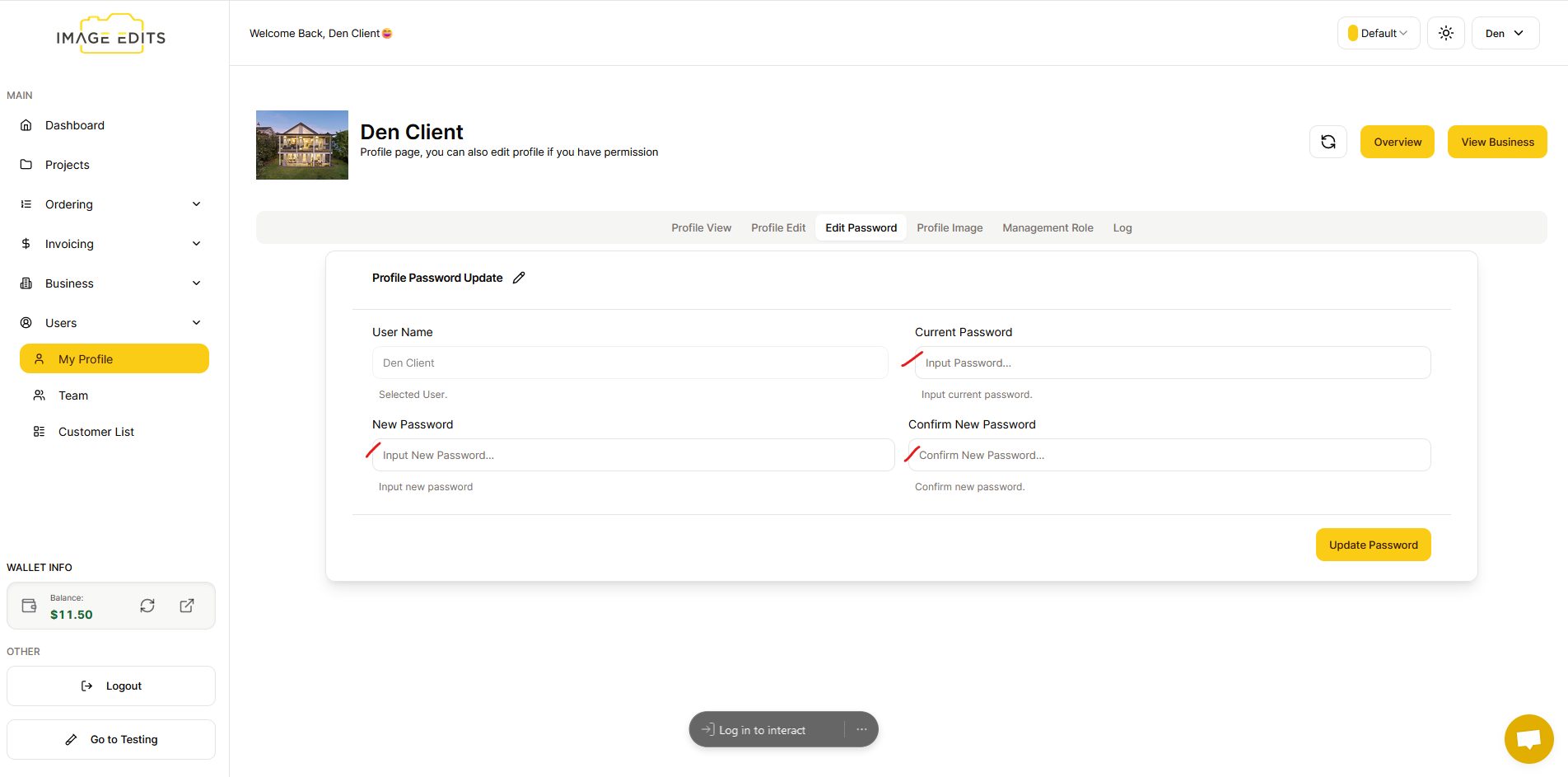
Step 2: Input Old and New Password
Click the “Edit Password” and change your password by entering your current password and your new password. Once done, click the “update password” button.
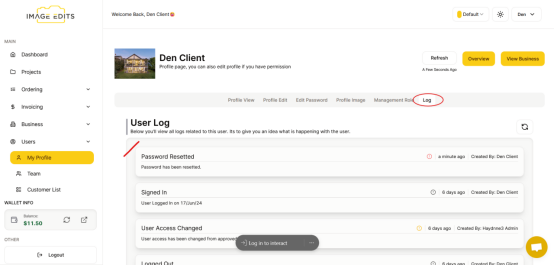
Optional: Check Your Log
The log is very useful to see what is happening. Select the log tab, you can see in the log that your password has been updated.
Reset Via Email Reset Link
This this section we are assumed you have forgotten your password and you are logged out. If you have forgotten your password but are still logged in from previous session, go ahead and log out and then reset your password by following the guide below.
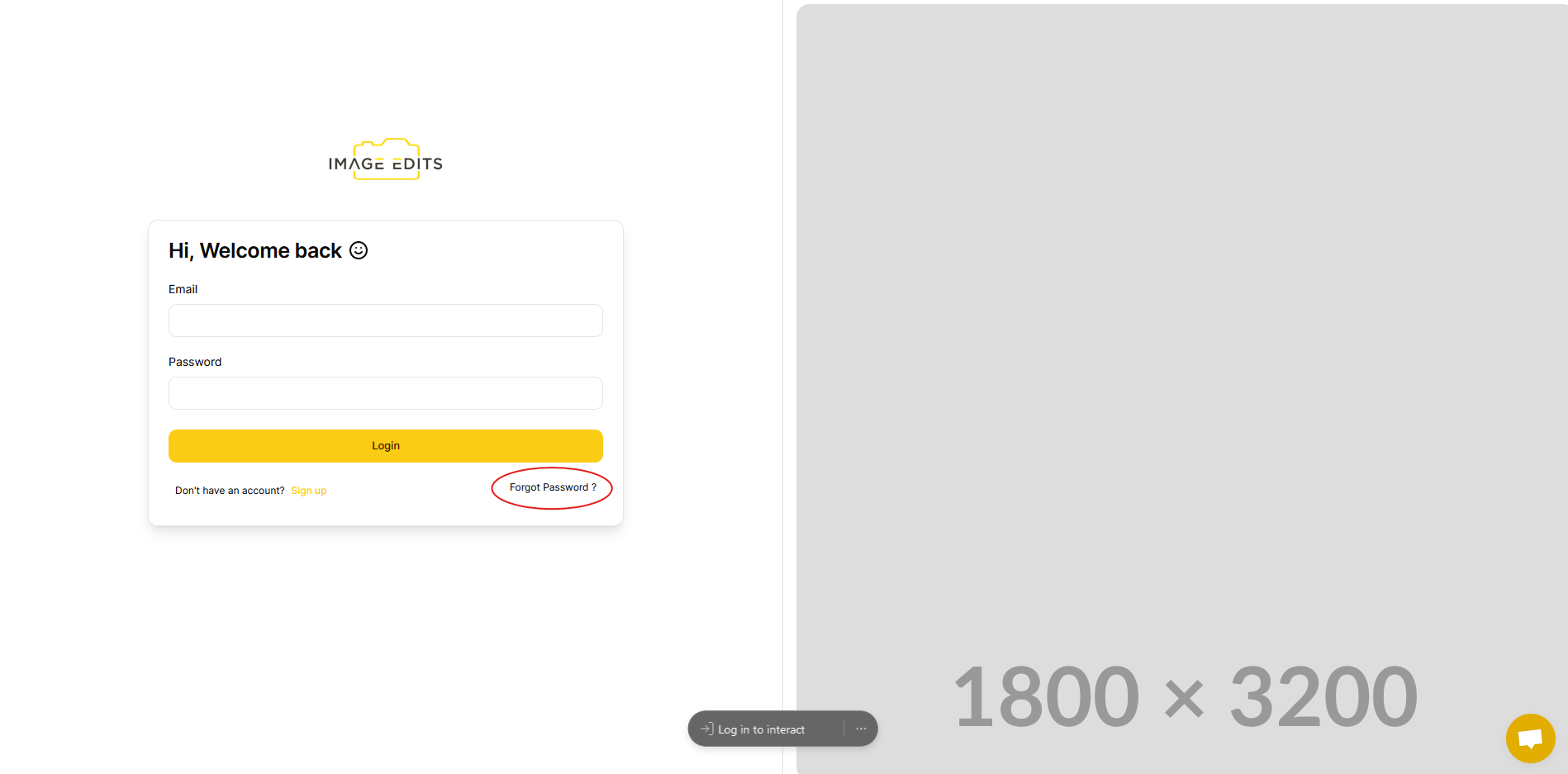
Step 1: Navigate to Login Section
Go to log in section and click the "Forget Password"
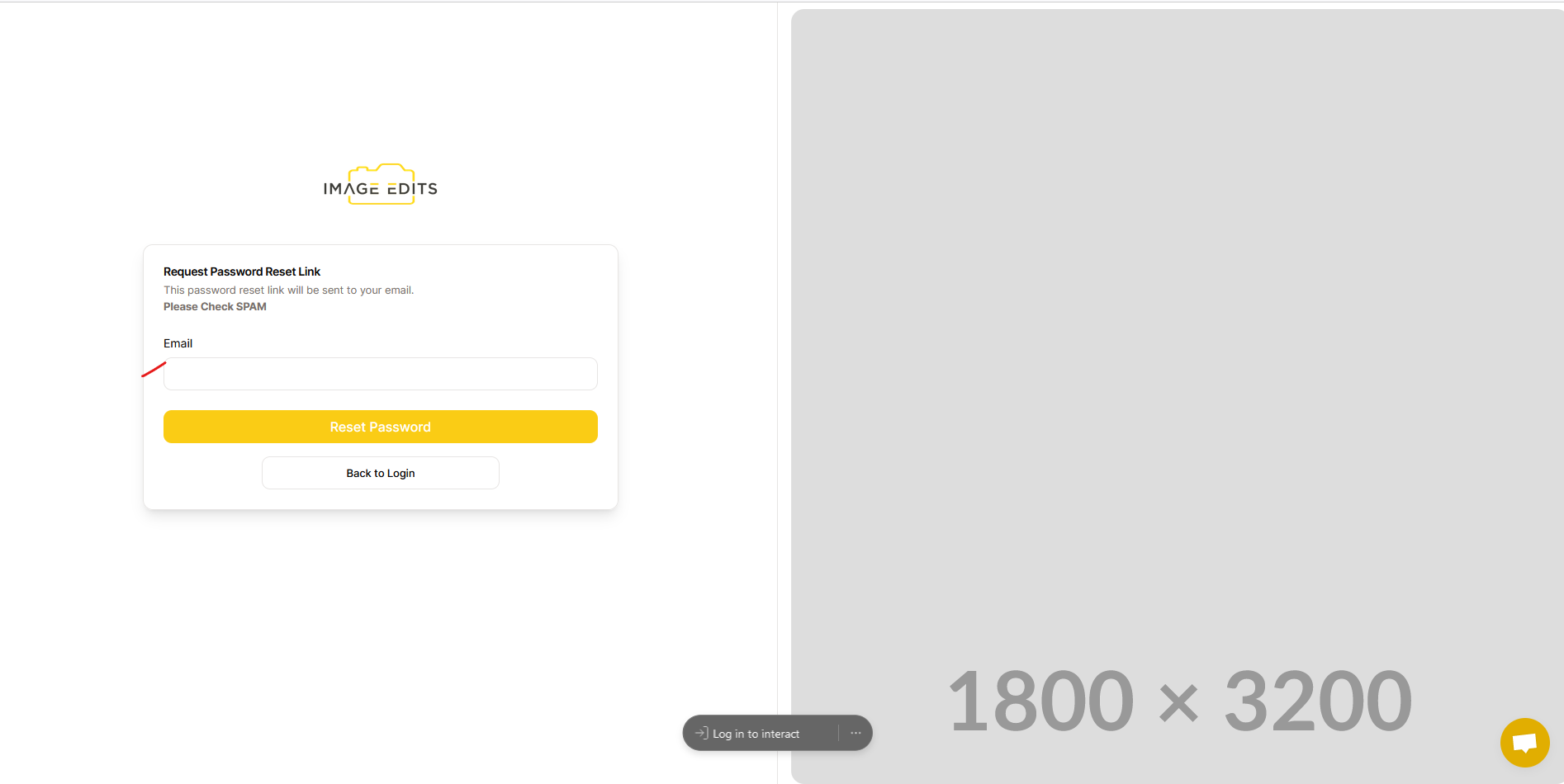
Step 2: Input Your Email For Reset
Please input your account email here, and click the "reset password" button. This will send off an email to your email address, with a link to reset your password.
Step 2: Find Reset Email
Go the your email inbox and find a similar email to the one below:
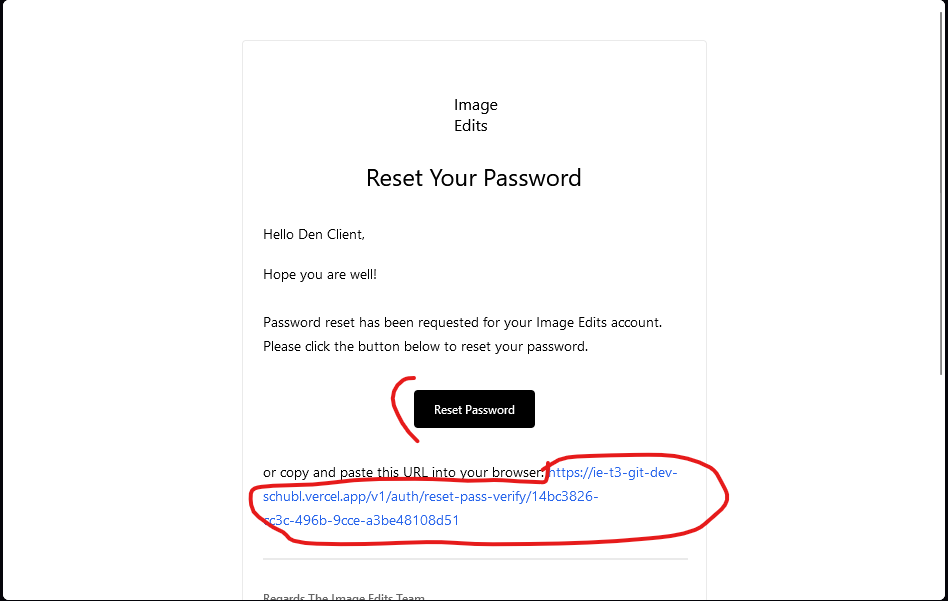
Click on the button or copy the link and paste into your browser.
Step 3: Input Desired Password
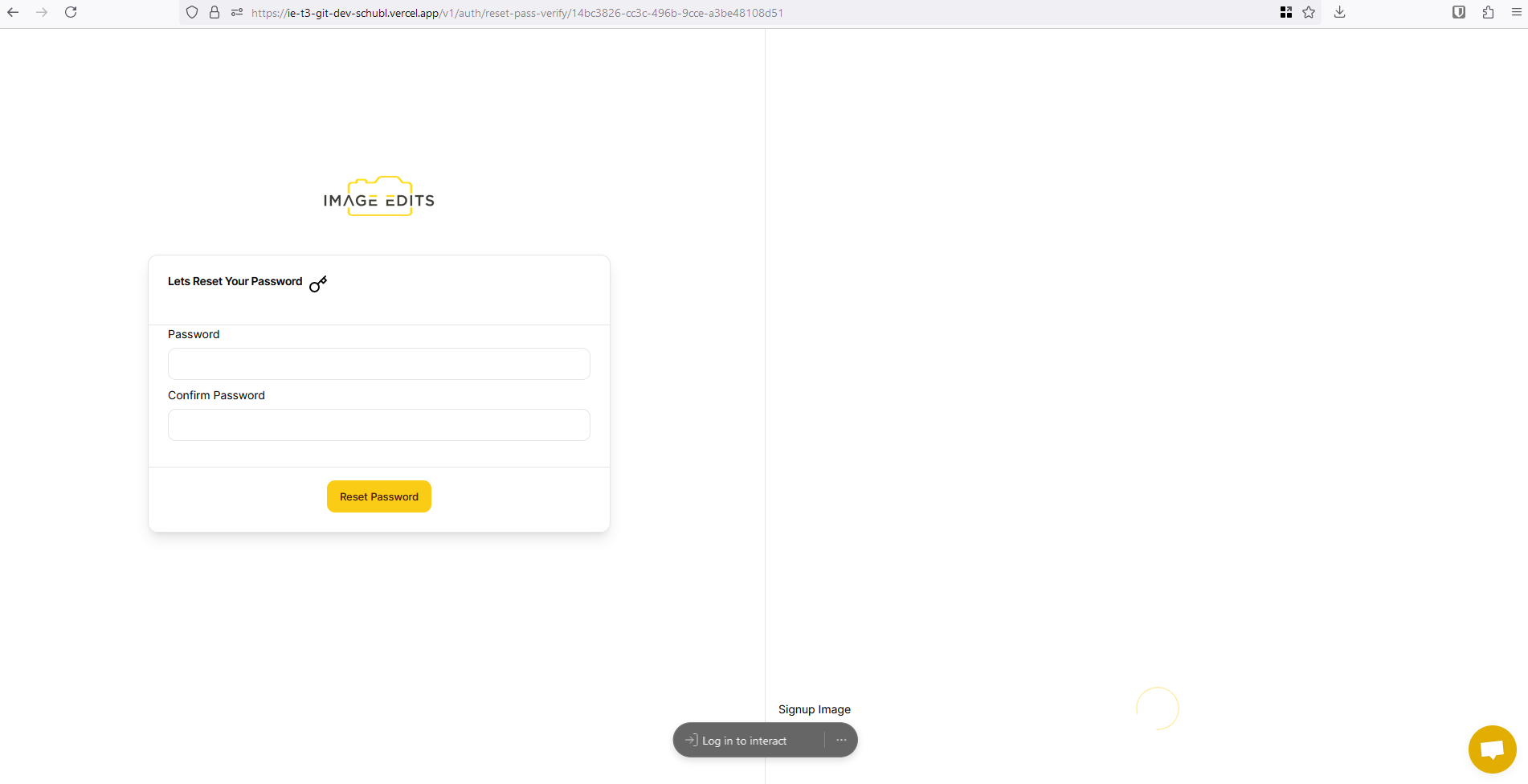
It will take you directly to the password reset section. To change your password completely, enter your desired password and to confirm it, re-enter your password and then click "Reset Password" when finished
Once all done, you will go straight to the dashboard section.
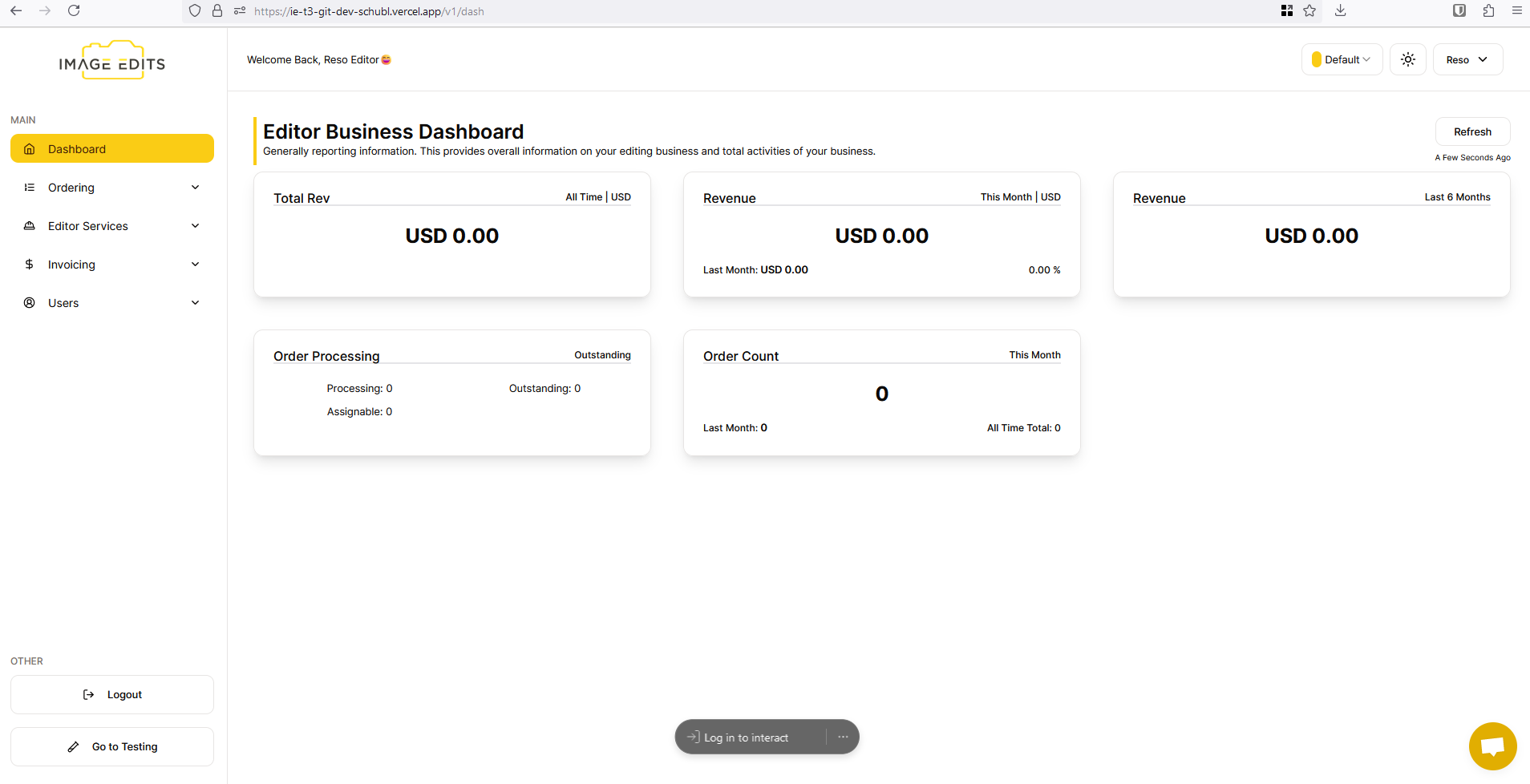
Your password has been reset and you have also been logged in.