Request Flow
Request System
Below will be a quick overview of the request system, and how to use it. Via the website, on the specific order when the order has status completed/quality control, there will be a new tab called "Create Adjustment". This is where you can start a adjustment request.
You'll see section like below:
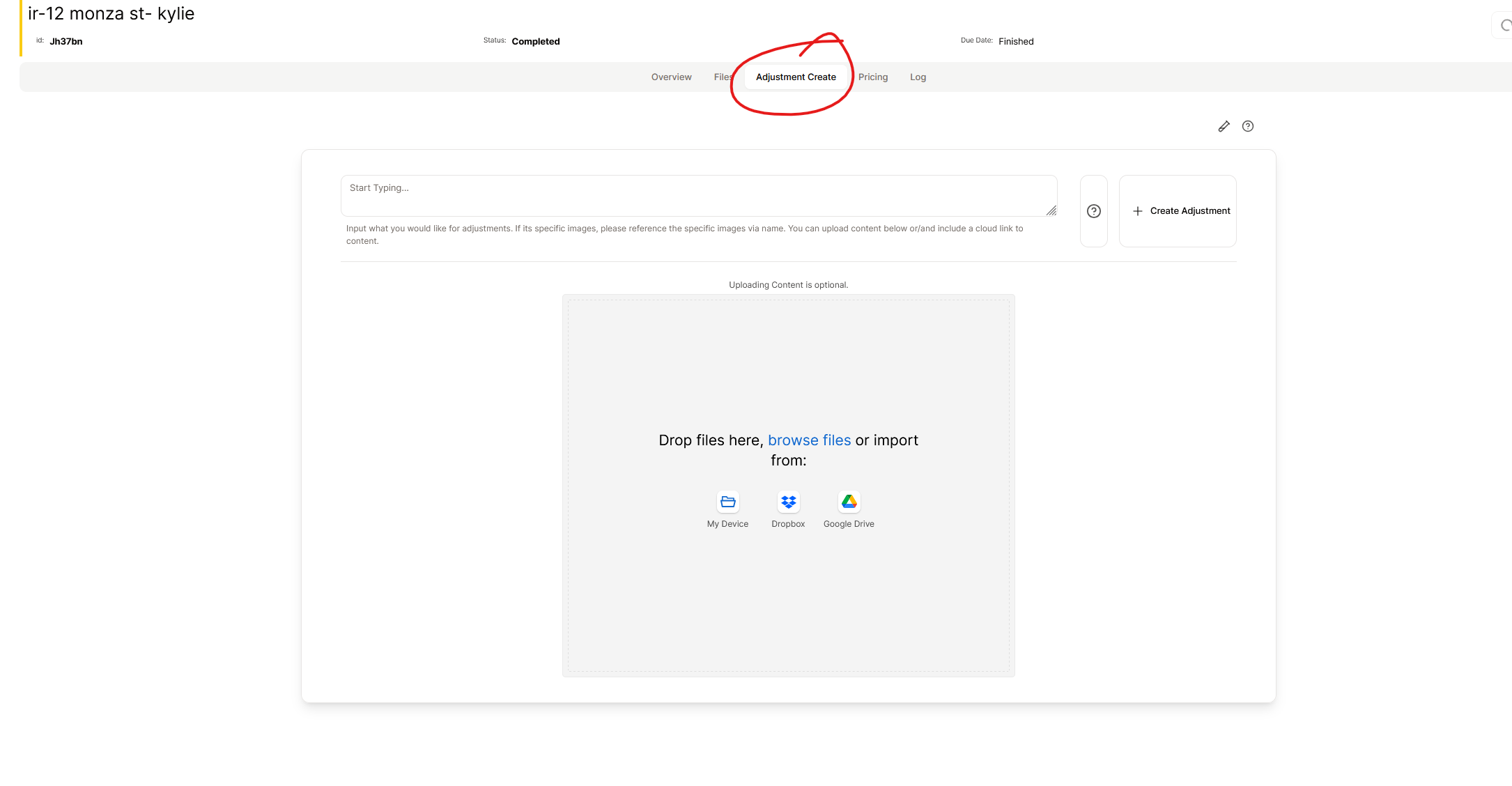
This is where you'll input what you want changed. You have a notes field, but also a upload for any content you want to upload, the uploader is optional.
After you have created a an adjustment request, you'll now see a tab just called "Adjustments" this is where you can view all the adjustments that have been requested and also a chat specific for this order to communicate regarding the adjustment. Who has access to this chat?
- Any Image Edits team member.
- Any client user with access to the order.
- Editor business owner/manager and quality control team member for that order.
You can read more on the chat here.
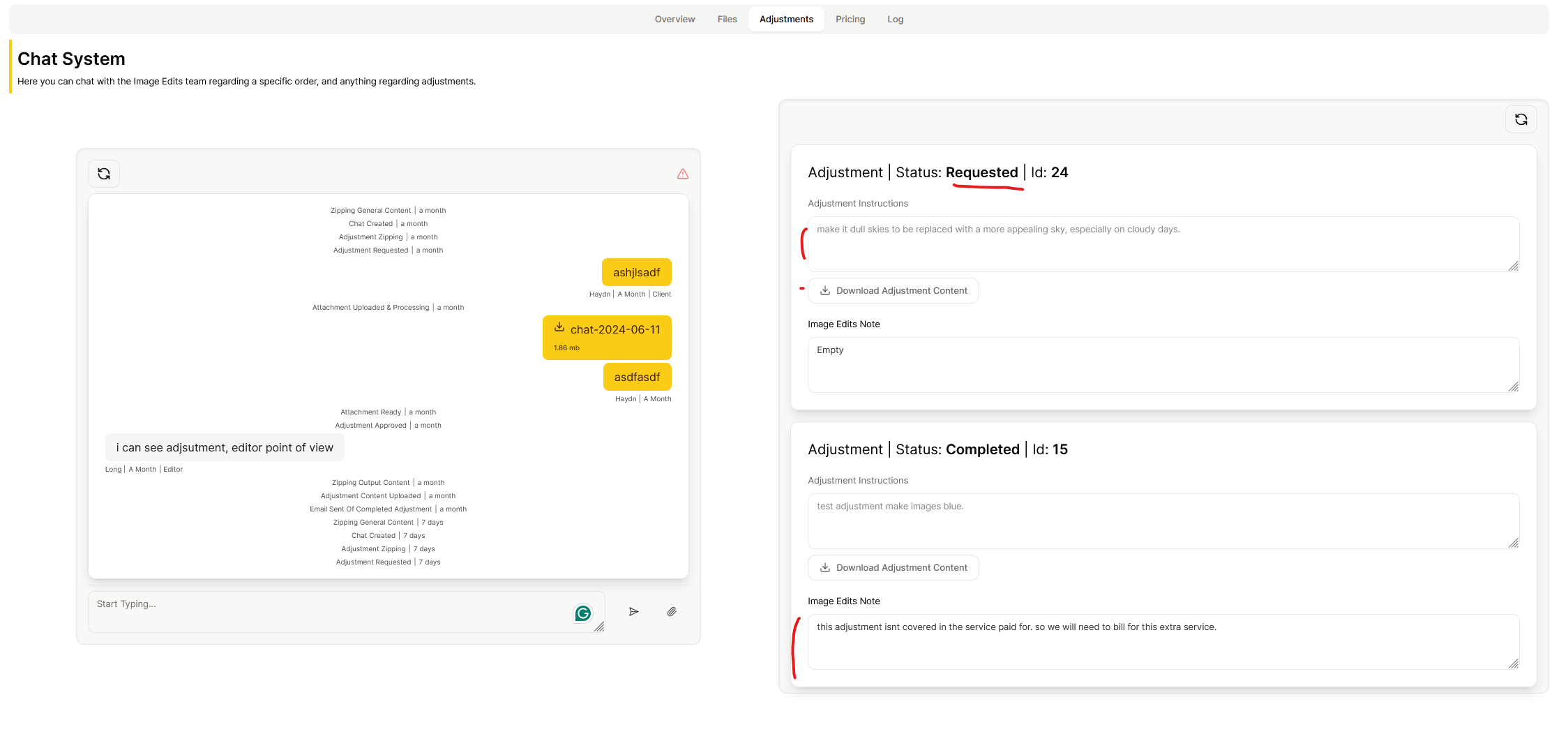
In the above image, on the right hand side you can see all adjustments requested and the status of each adjustment. You can only have one adjustmen processing at a time. So specify everything you need adjusted in each adjustment. In the Adjustment Section:
- Status: Each adjustment has a status, the possible statuses are:
- Requested: This is awaiting approval from Image Edits.
- Processing: This is currently being processed by the editors. (this means that it was approved by Image Edits to start changing)
- Rejected: This is rejected by Image Edits. Reason will be provided in the Image Edits Notes section.
- Completed: This is when the editors has made change, uploaded new adjusted content, and marked it as completed. You'll receive an email when this is done.
- Zipping: This is when content was uploaded with the adjustment, we need zip the content first. When finished it will move to status Requested.
- Adjustment Notes: These are the notes that you inputted on the adjustment create request.
- Adjustment Download: This is the download button for content that you uploaded with the adjustment request. If you didnt upload any content, this wont be visible.
- Image Edits Notes: You'll also see Notes from Image Edits on each adjustment, will be empty most of the time, but other times example if it was rejected, we will add a note to explaining why.
Approval Process
Once an adjustment request is created, Image Edits will be notified and review the request. Fast majority of the time Image Edits will approve the request, but if there is anything that doesnt make sense, Image Edits will contact for clarification. Image Edits will generally only reject if the adjustment is outside of the scope of the current order service selected. If it is out of scope, we will contact you to discuss, and generally recommend another service to get the the job finished with extra requirements.
Adjustment Processing
Once the adjustment has been approved, the relevenat editors will be notified to start adjusting the adjustment.