User Access
Change User Access
This section will guide you through the process of adjusting user log in access to the platform. If the users isnt approve to access the platform, they will be rejected on log in attempt, (even if details are correct).
Requirements:
- Either be a Business Owner OR apart of Image Edits Internal Team
General team members will not be able to control other team members access to the platform.
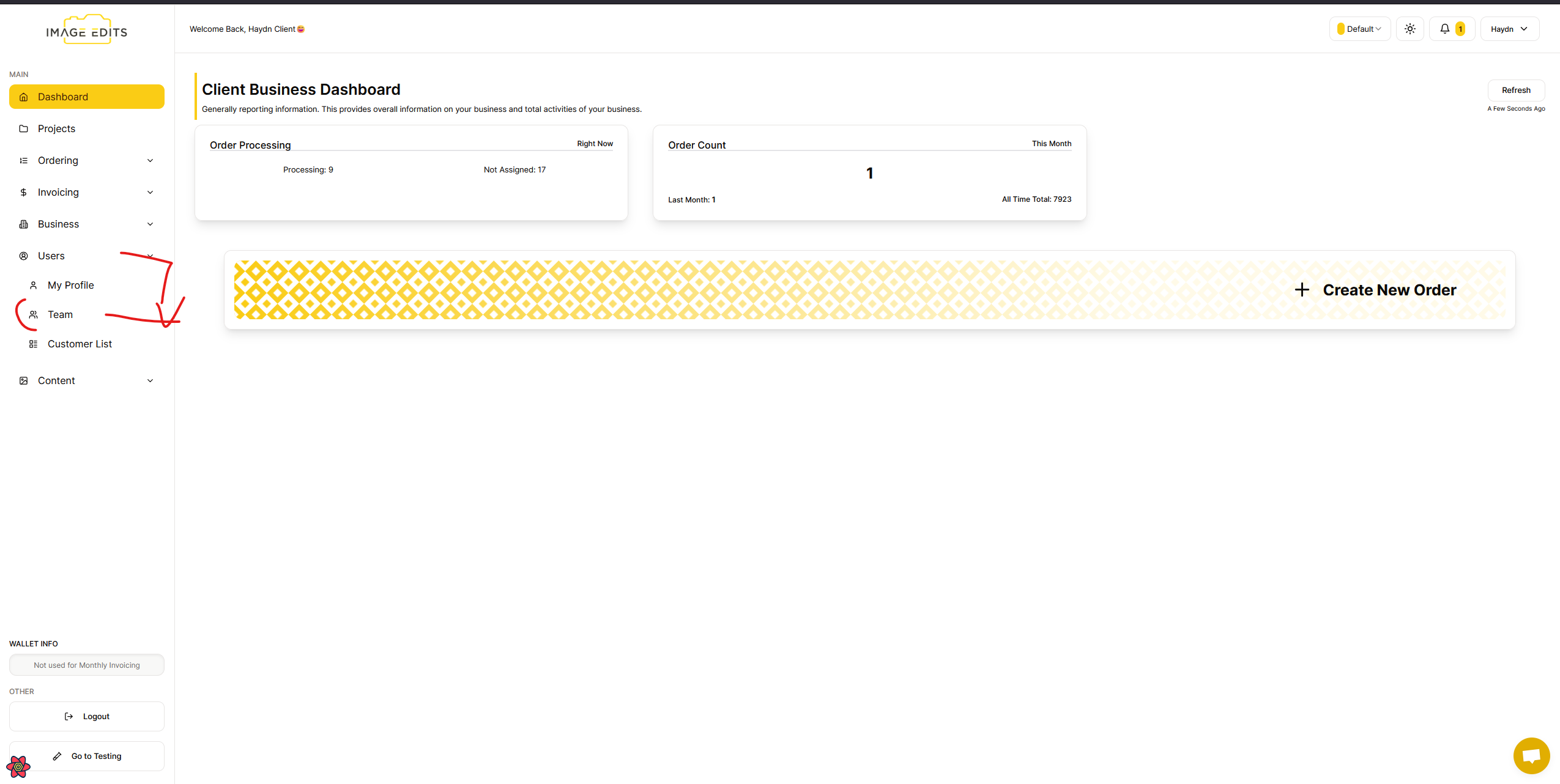
Step 1: Navigate to "Team" User List Section
We are assuming you are currently logged in as a user that is owner of business (or internal Image Edits member).
Lets go to the "Team" section, this page will list all the users that are part of the team.
Step 2: Select the Team Member
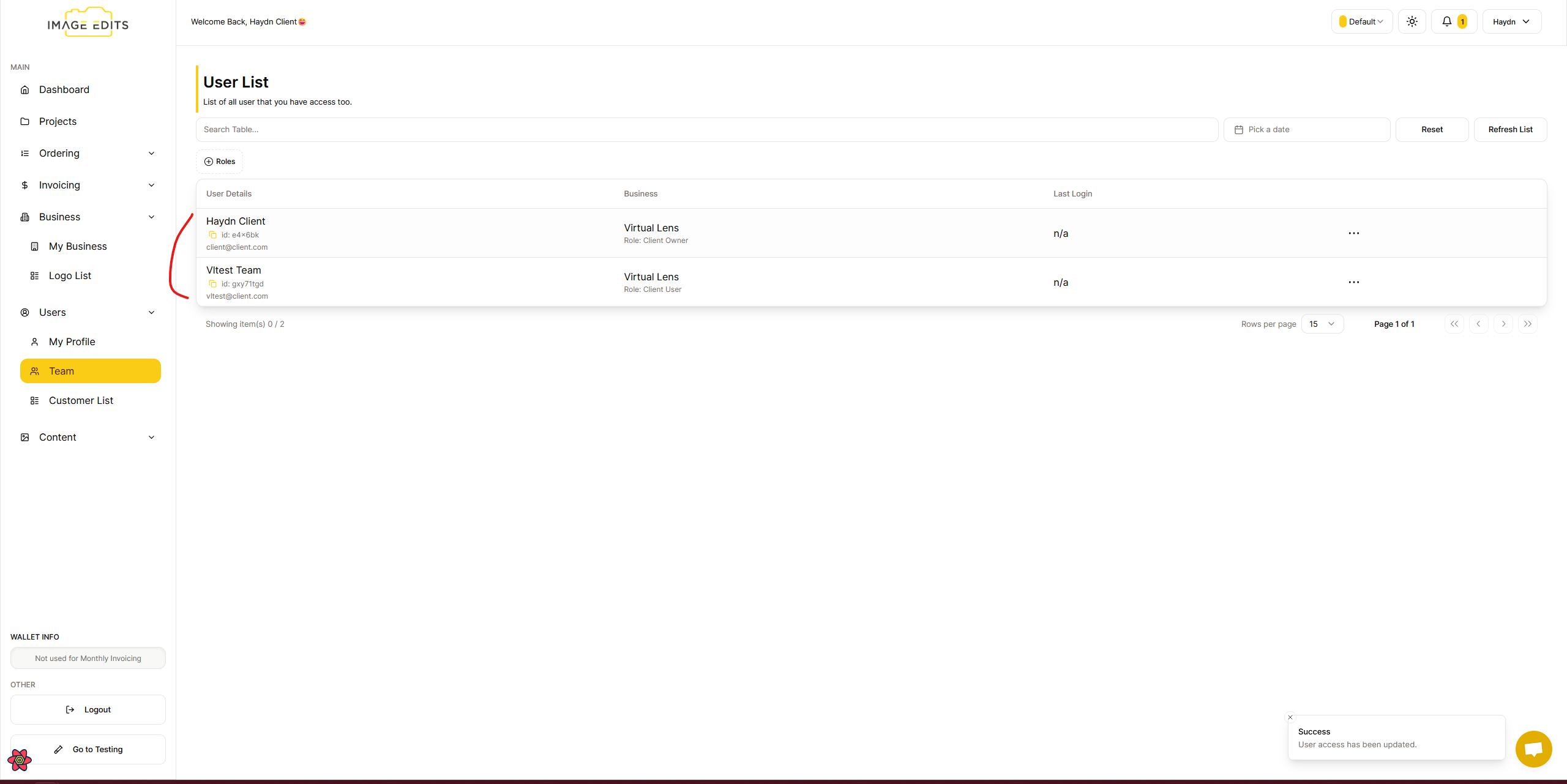
There will be a list of all users within your business, select the user you are wanting to adjsut the access of. When clicked it will take you to the user profile page.
Step 3: Go TO Login Access
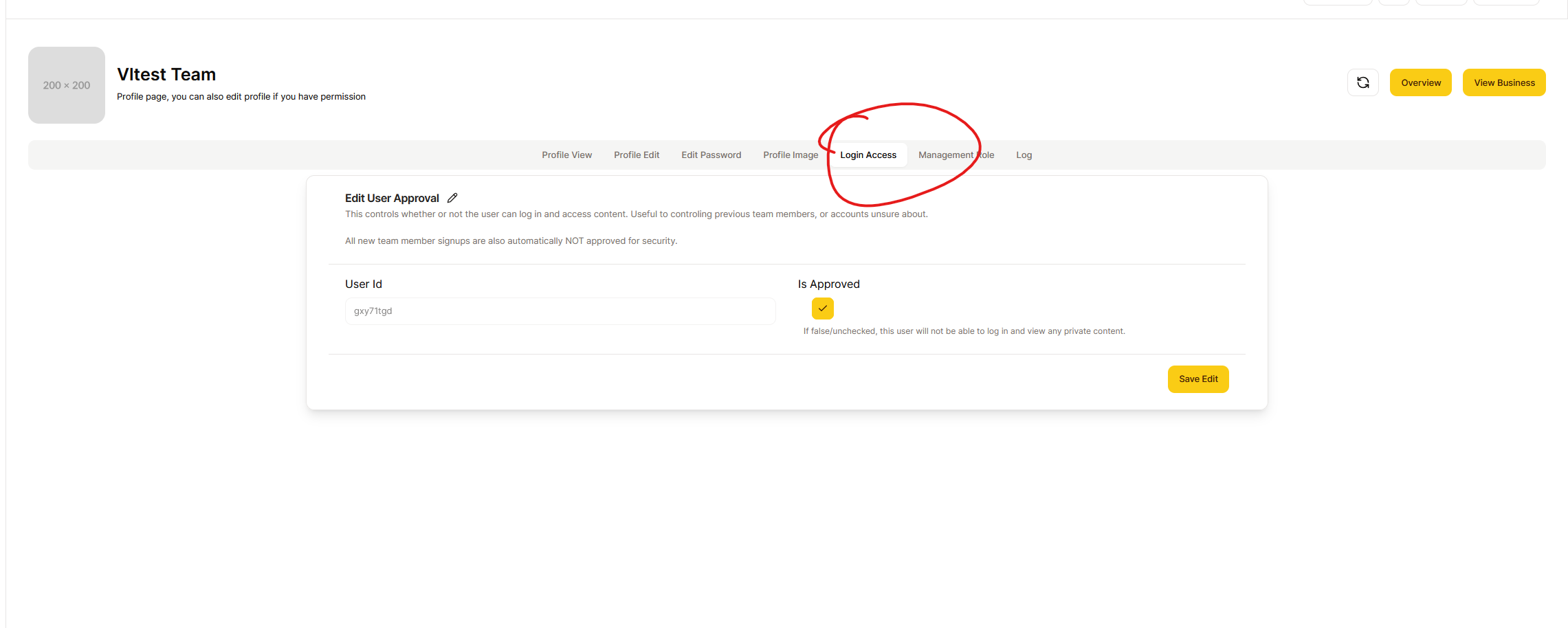
Go to login access tab to adjust the access.
Step 4: Edit Access & Save
Check the check box if you want this selected user to have access to the platform. Uncheck if you dont want them to be able to login.
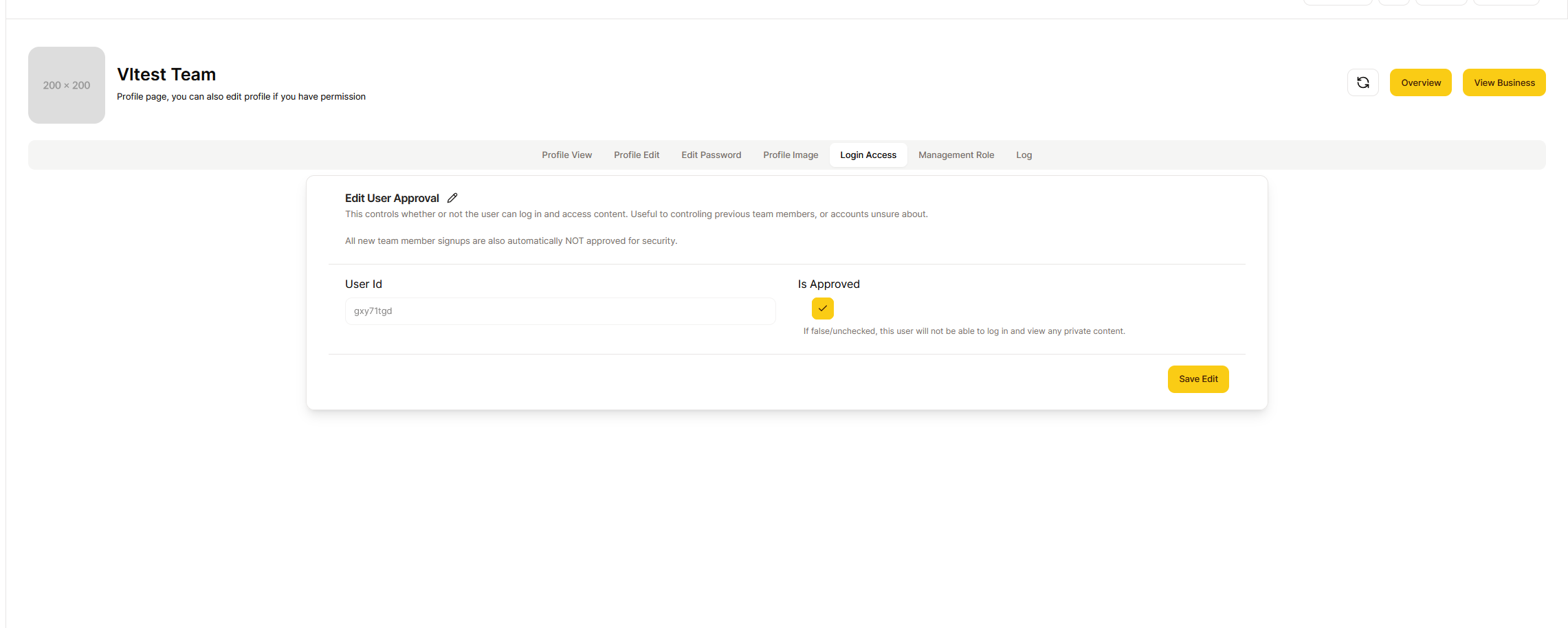
This users access has now be updated. If unchecked, the user will not be able to login to the platform. See below for example of image of what the user will see when they try to login.
Log In Attempt
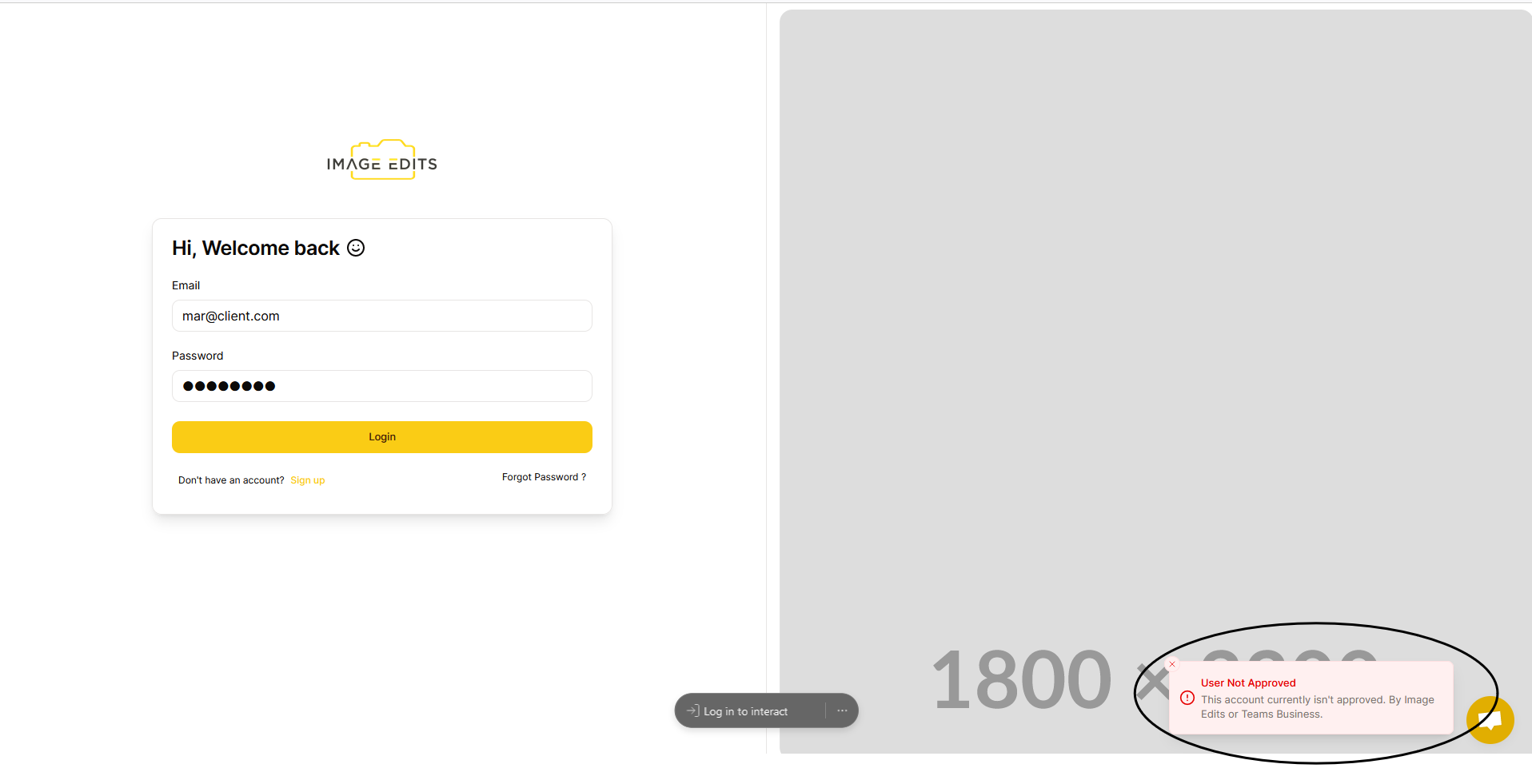
Upon attempting to log in, a popup notification will inform you that your account has not been approved.