Get New Jobs
NOTE: This section is only useful for editing businesses and their team members.
Assigning New Jobs
This section will go over how to assing new jobs to yourself or your team members.
Step 1: Navigate to New Jobs
Go to "+ New Jobs" section
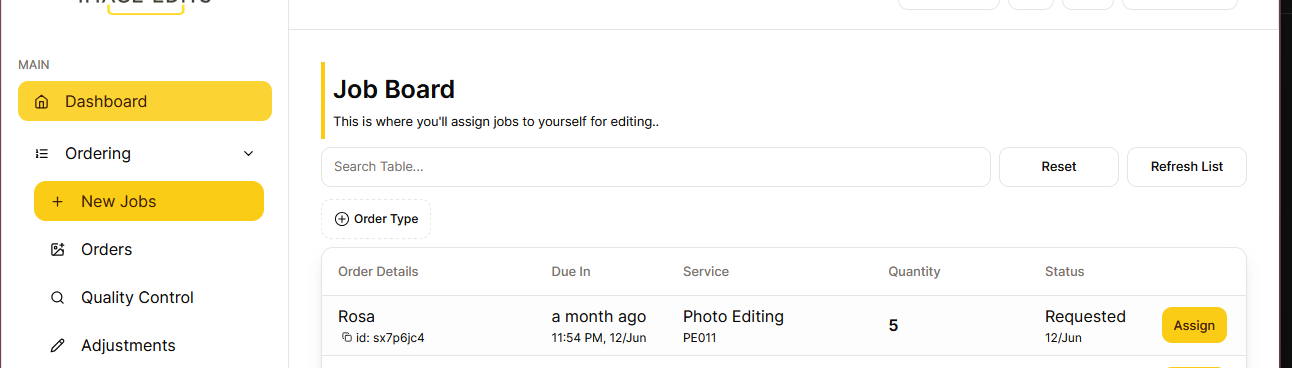
This section will show a list of all new jobs that are waiting for an editor to be assigned to the order and start processing. Its listed from oldest to newest. Assign the one on top first. The list will only show jobs that the editing business is approved for, and also the current editor is approved for the service. If there are no new jobs, it means all jobs are processing or you might not be approved for any services.
Step 2: Assign Job
Lets assign the job at the top, to yourself. To do this, click the "Assign Job" button.
This will bring up a popup like below:
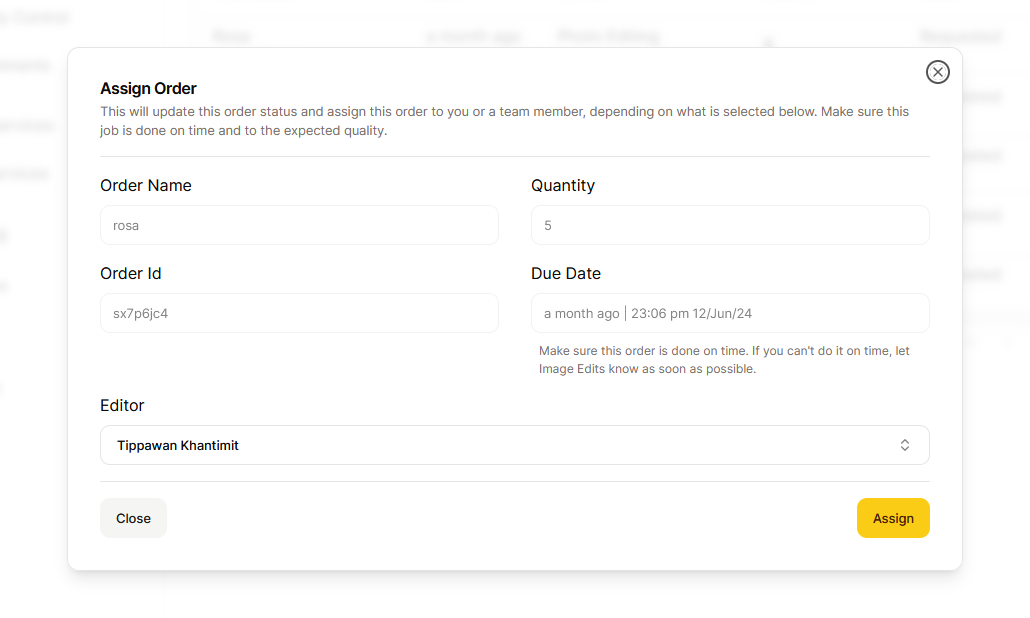
If will have some common information about the order. If you are also are manager of the editing team, you can also select an editor you want to assign the job to. (The list of editors will only include editors you can manage and also editors that are approved for the service)
Once you Assign job, the order status will update and the editor will be assigned to that job and should start processing the job right away.
You'll now see this job under the "order list" section with the status of "processing". Go to the order, read the notes and download source content.