Style Preferences
Preference Create Flow
This section will guide you through the process of creating preference.
Step 1: Navigate to "My Business"
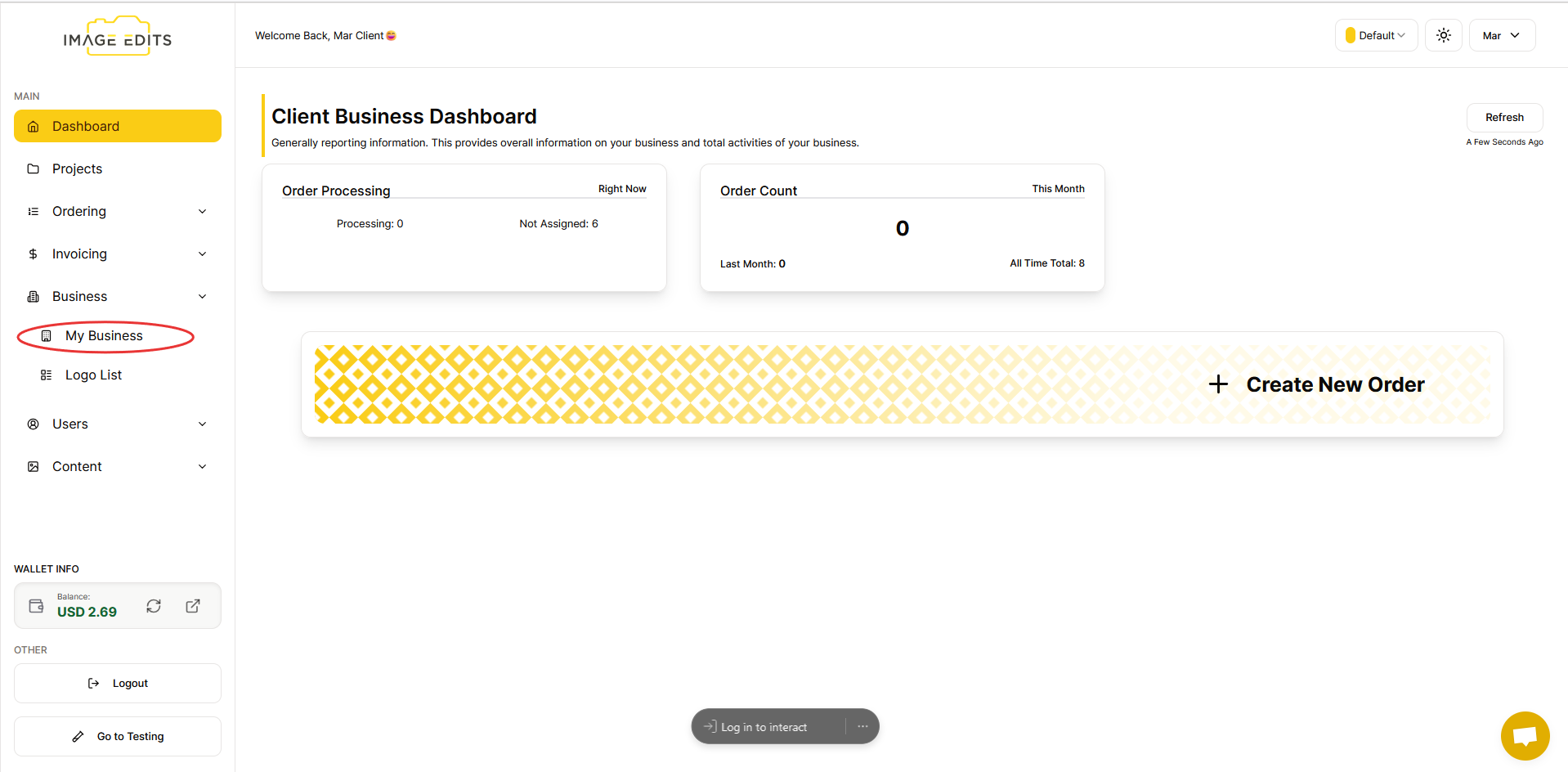
To begin, click on the business section, and then navigate to "My Business.
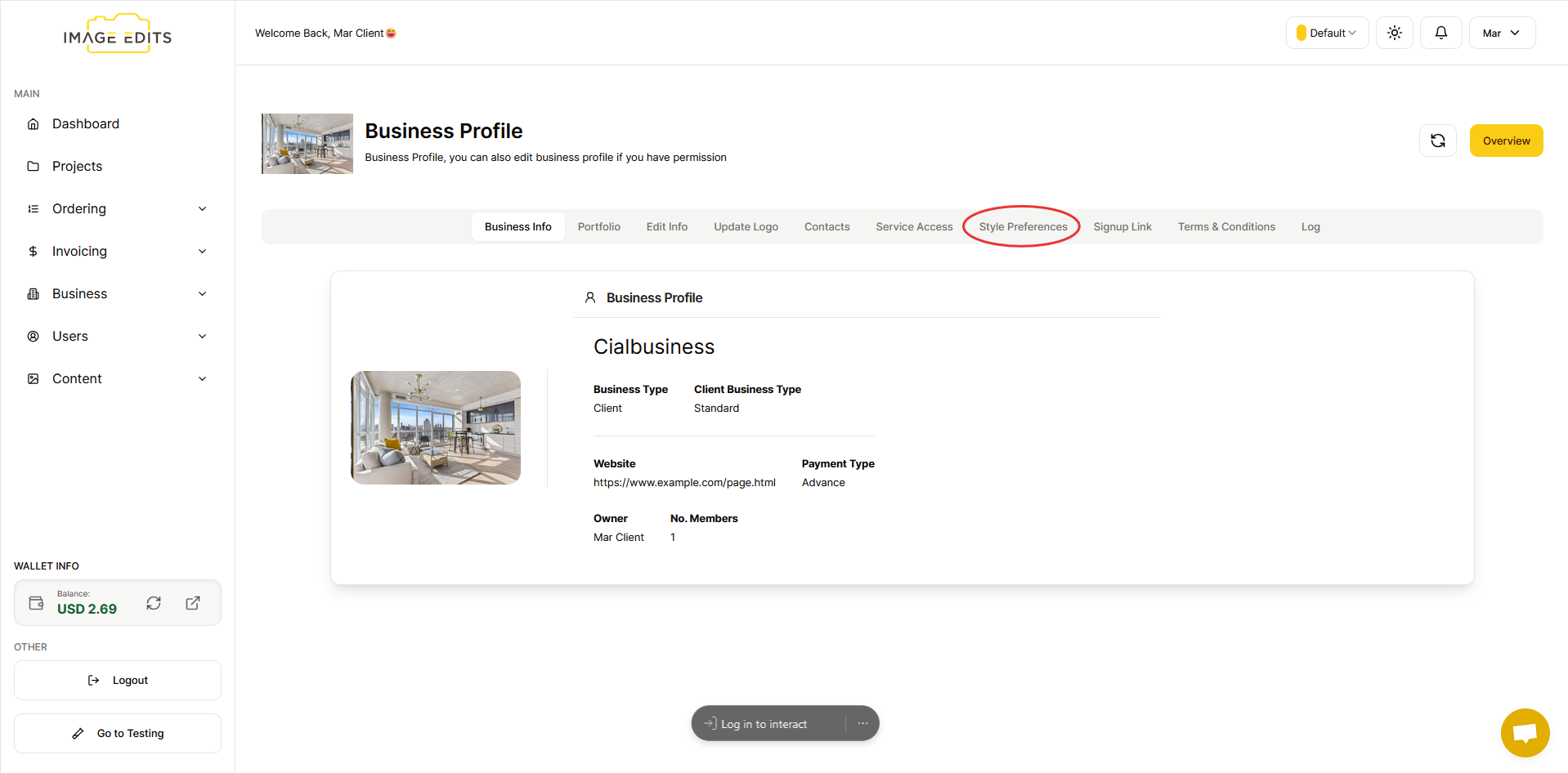
After clicking "My Business," you will be directed to the "business profile" page where you can find also the "style preference" section
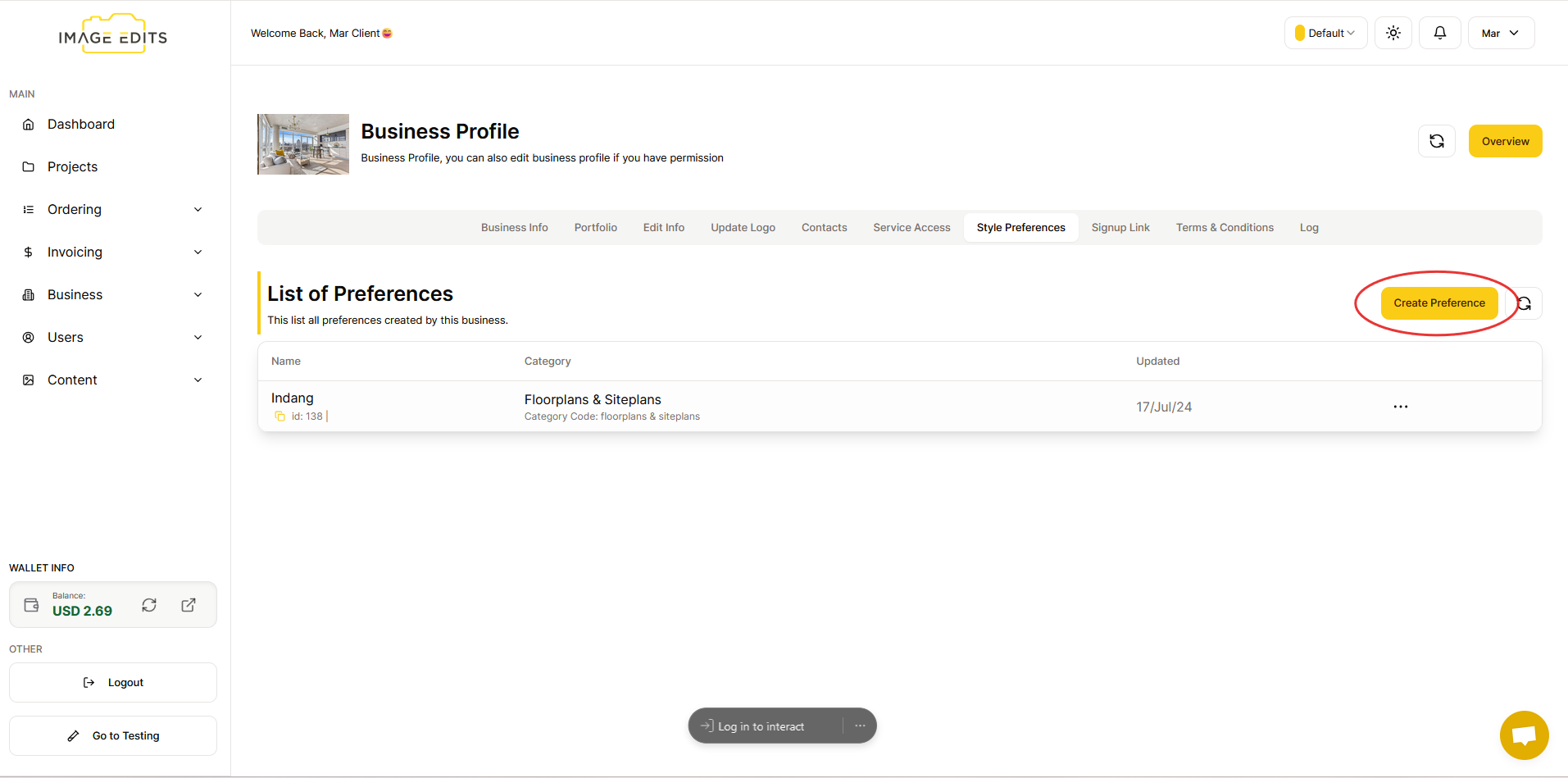
You can also view the list of preferences here, with the "create preference" button located on the right side.
Step 2: Fill out the "Update Preference" Form
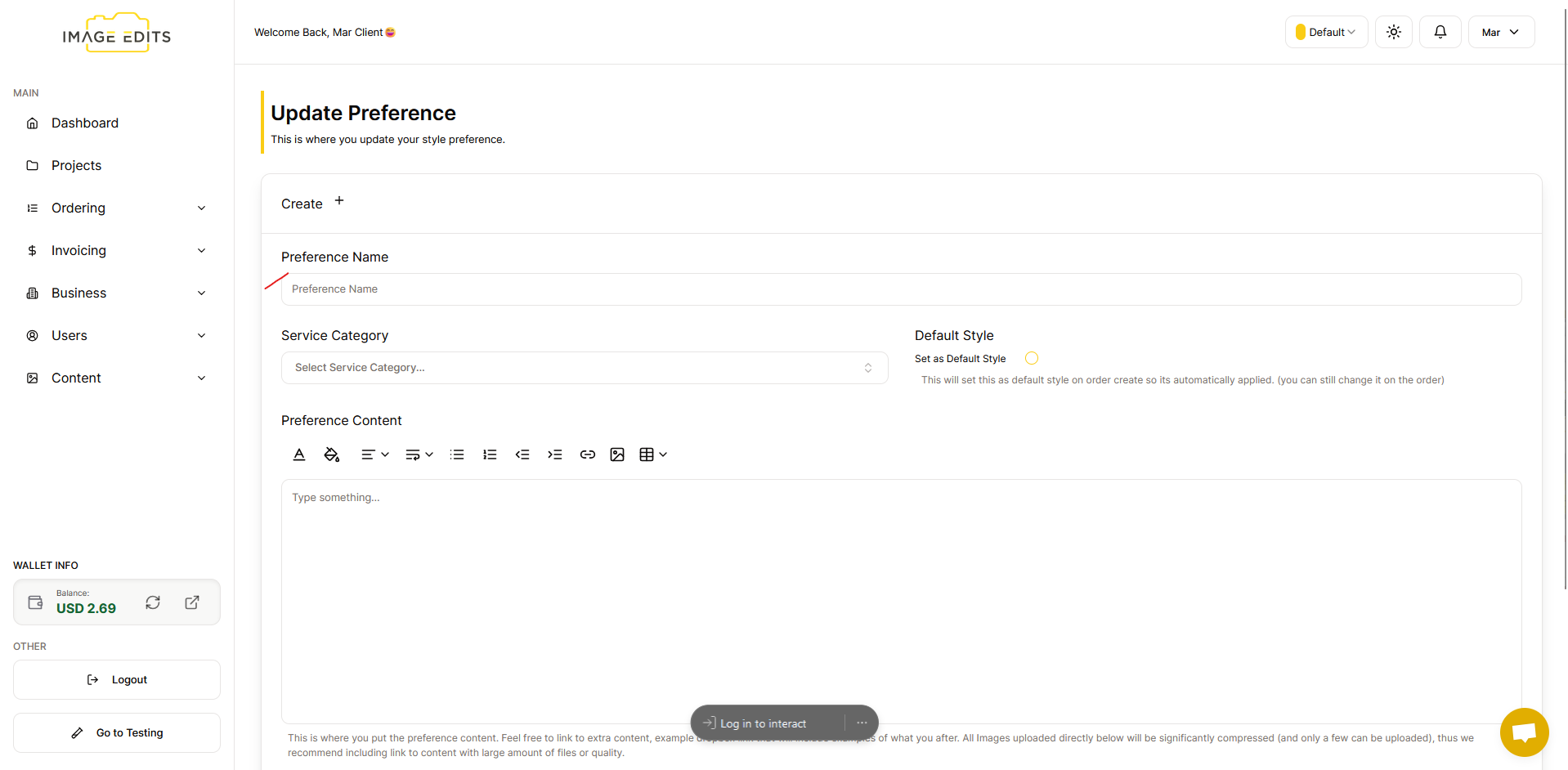
Preference Name
Input any preference name you want. (Refers to the specific name or title given to a preference or setting within a system or application)
Select Service Category
Select any service category you want
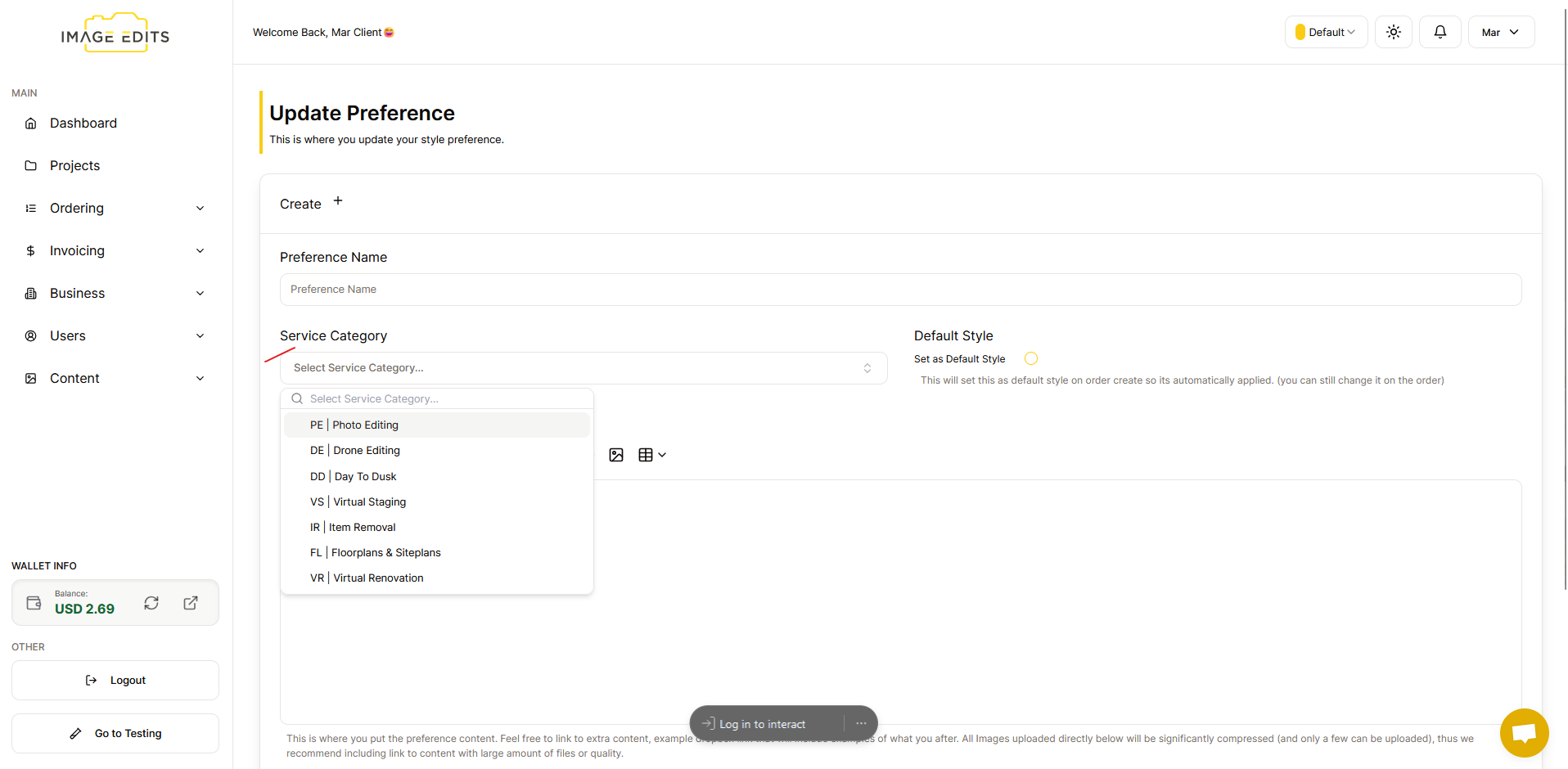
Let's assume that you selected "Photo Editing"
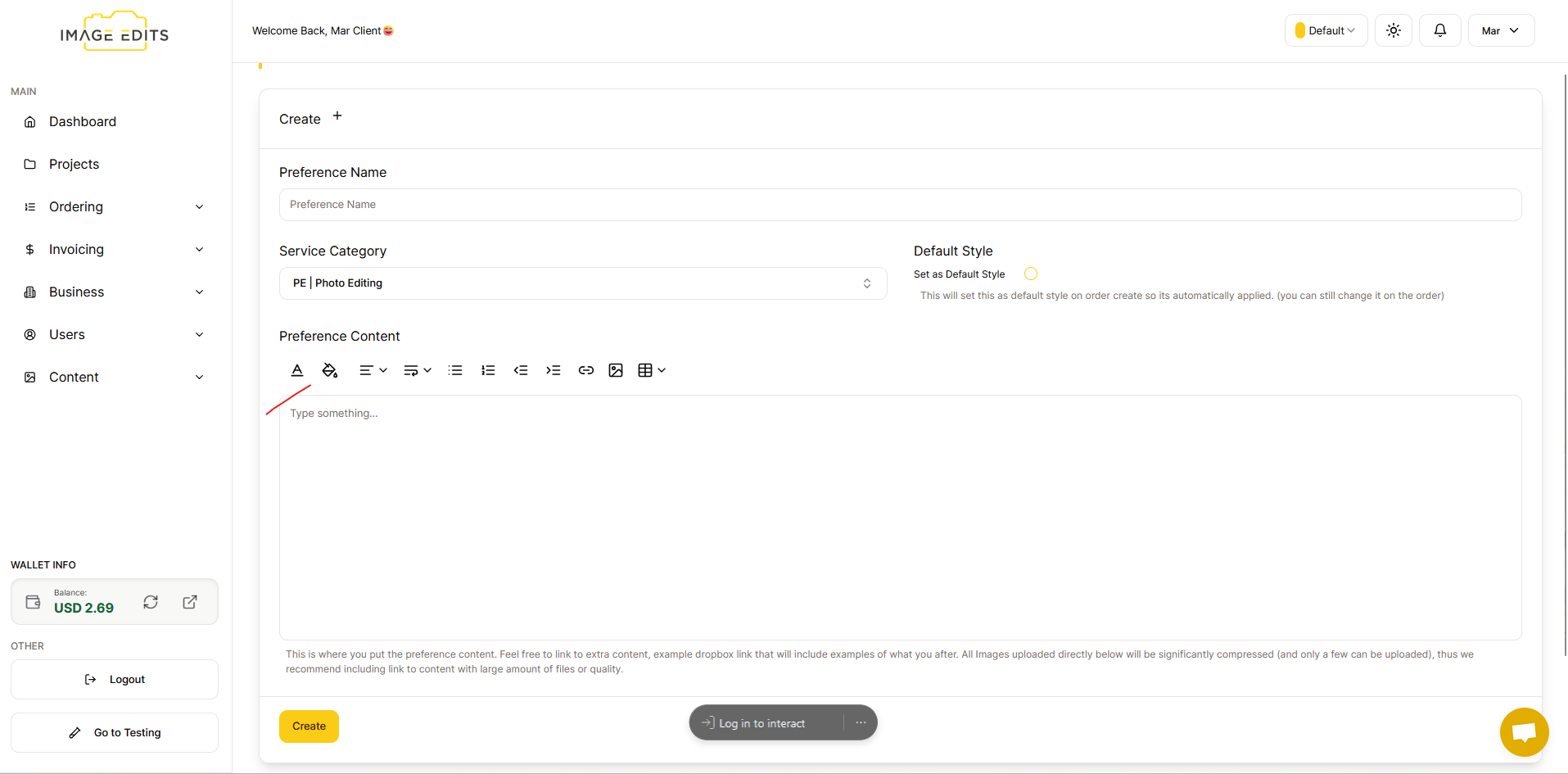
Preference Content
This is where you put the preference content. Feel free to link to extra content, example dropbox link that will include examples of what you after. All Images uploaded directly below will be significantly compressed (and only a few can be uploaded), thus we recommend including link to content with large amount of files or quality.
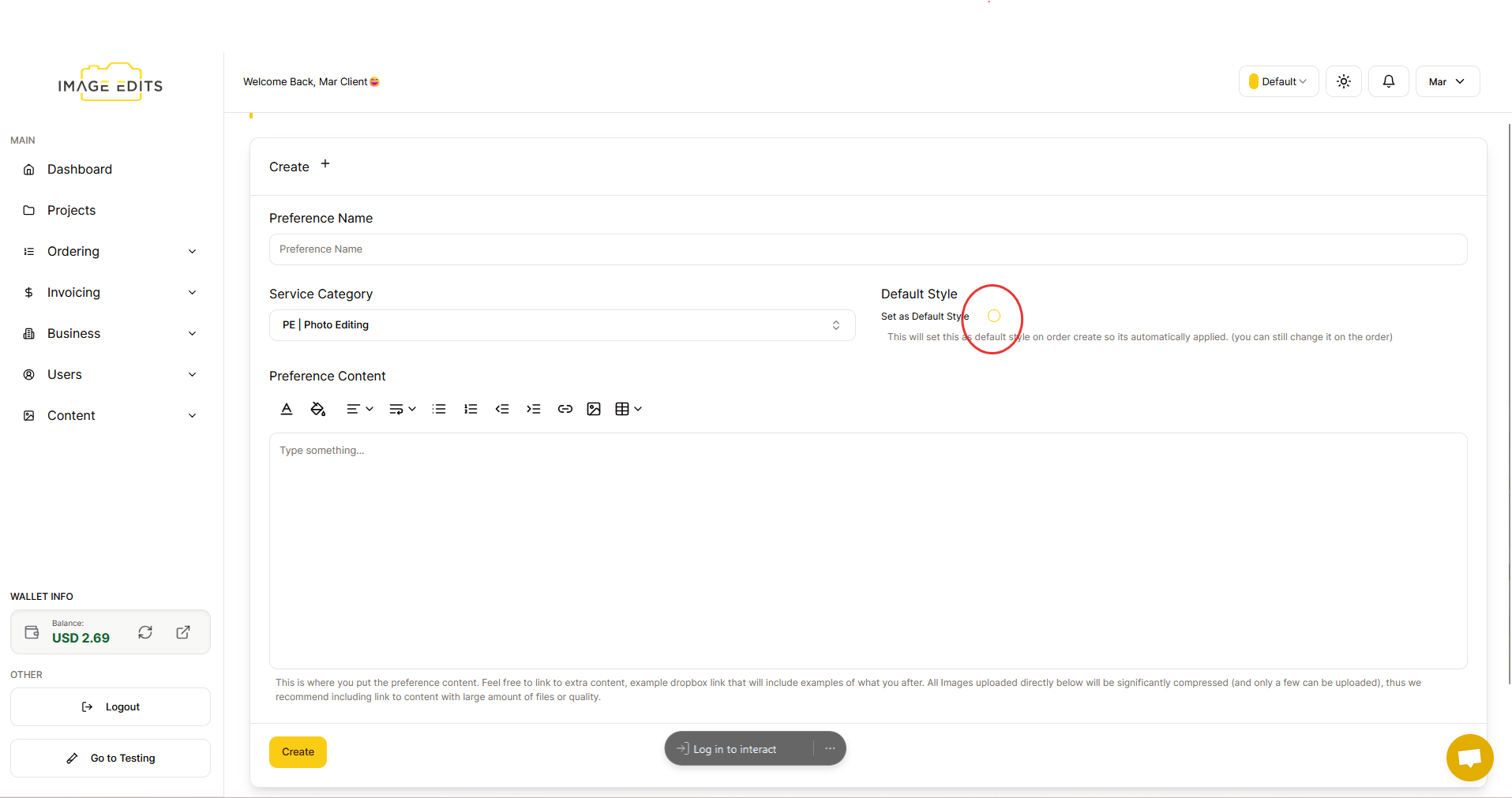
Default Style
Press the yellow circle beside the "Set as Default Style" text. This will set this as default style on order create so its automatically applied. (you can still change it on the order). Afterward, click the "Create" button located below.
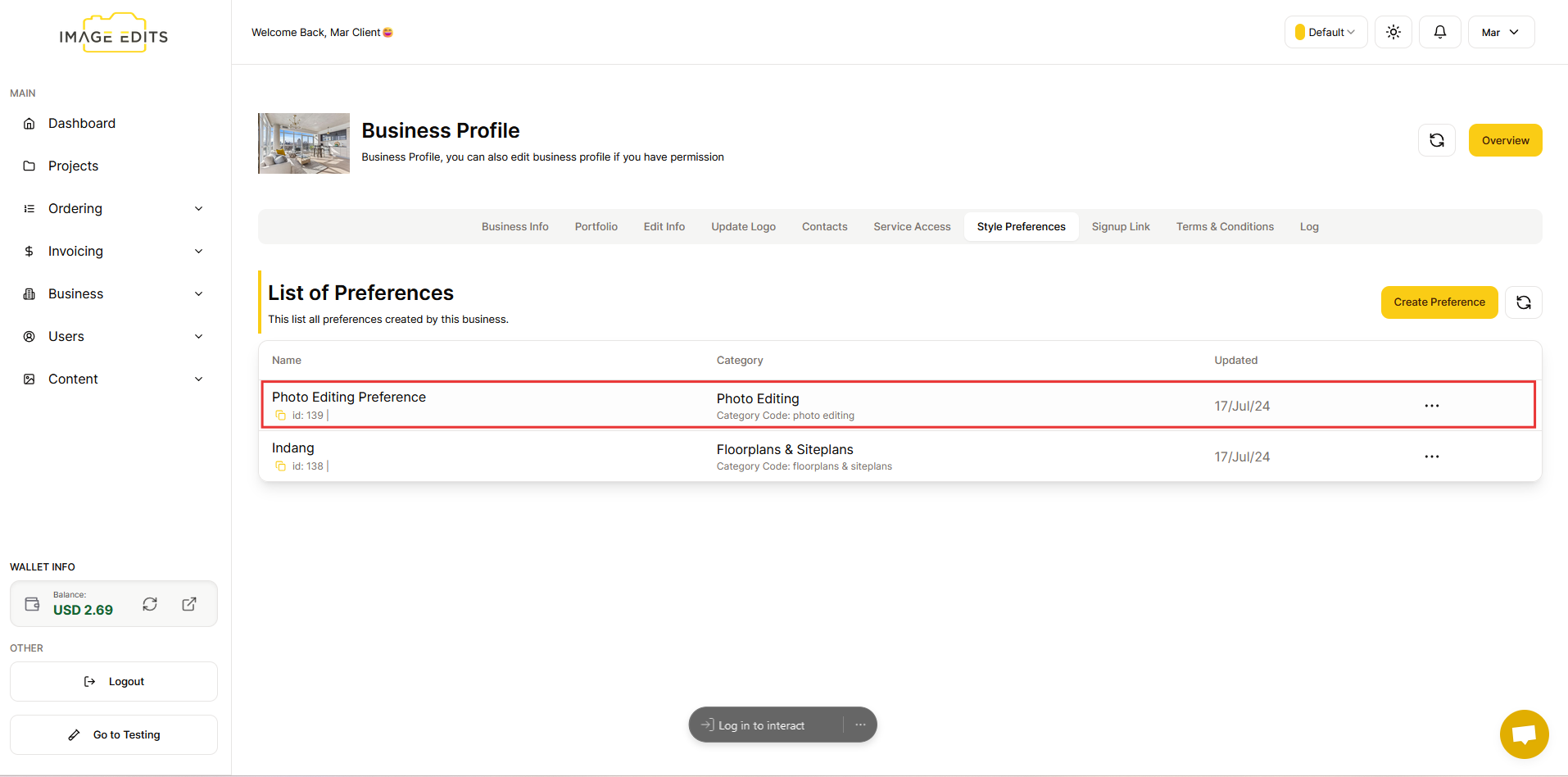
Once done, it will be displayed in list of preference.